Adobe InDesign Training Courses Online Live or In-Class across Australia
Our InDesign training courses will teach you everything you need to know about combining text and graphical elements to create complex, scalable documents for print and digital media. With Adobe Certified industry experts leading our classes, you can trust that you’re learning the best practices for creating professional publications. At Dynamic Web Training, we have two Adobe InDesign classes; our fast track course is designed for beginners with little to no knowledge on InDesign, whereas our long documents course is catered to advanced users.
We offer InDesign courses Online Live or upon demand in Sydney, Melbourne, Brisbane, Adelaide, Perth, Canberra and In-house across Australia. we also offer customised InDesign training to suit your specific learning needs.
InDesign is the industry standard page layout software. This course give you the hands-on skills to work with demanding workflows, creating rich and complex documents, from single page advertisements and flyers to complex multi-page colour publications.
View Full Course Details
In this course participants will learn the advanced InDesign skills for producing long documents, such as, advanced layers, master pages, text variables, styles, generating books, automation and more...
View Full Course Details
Dynamic Web Training
$990 incl GST
Course Duration
2 Days
Course Level
Advanced
Study Modes
In-Class / Online Live
CPD Hours
12 hours
Pay Later
Course Inclusions
FREE Class Re-sit
8months
Free course repeats/re-sits for up to 8 months. This is a great way to build your InDesign skills over time.
FREE eMail Support
12months
Free email support for up to 12 months the course; to maximise your InDesign learning potential.
Small Class Sizes
10max
Small Class sizes; personalised learning experience for every student.
Instructor Led
Hands-on Instructor-Led Classroom or Online Live Training delivered by expert InDesign Trainers.
Course Manual
Course manual with step-by-step instructions; an excellent reference guide for well after the training.
Computer Provided
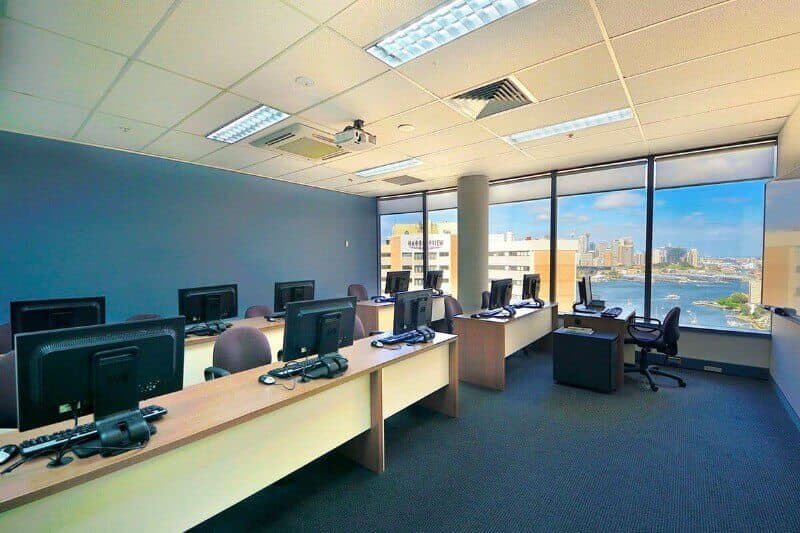
Classes conducted in fully set-up computer labs. No need to bring your own Laptop.
Course Certificate
Certificate of Course Completion; to recognise your InDesign skills.
Frequently Asked Questions (FAQs)
Q: What are the prerequisites for InDesign courses?
A: Our InDesign Fast Track Course is ideal for those with little to no experience, so no prerequisites are required. In order to complete our Creating Long Documents course, however, the completion of the prior course is a requirement.
Q: How long do the courses last?
A: Our beginner Adobe Indesign class runs for three days, whereas our advanced class runs for two.
Q: Do the courses offer certification?
A: Of course! All students receive a certificate of completion after successfully finishing their Adobe InDesign course.
Q: Can I access materials after completing the course?
A: Yes, participants receive comprehensive training materials and 12 months of email support to reinforce their learning.
Q: What setup do I need for live InDesign online training?
A: To get the best learning experience from InDesign Online Live training, you will need:
A Windows or Mac OSX PC or laptop (with a second screen/monitor)
Broadband internet connection
Microsoft Teams app installed
A headphone/earbuds with a microphone. The ones that you use with your smartphone are sufficient.
Microsoft Office Professional installed
PLEASE NOTE: Two business days before the course date, participants will also receive the course invite email with MS Teams joining links and links to download the training files and course book.
Why Learn InDesign?
Adobe InDesign is the industry standard for desktop publishing and is a powerful page layout software that can be used seamlessly on both Windows and Macintosh platforms. With InDesign you can easily and creatively bring together text and graphics to generate brochures, books, manuals, catalogs, newsletters, forms, labels, interactive pdfs, presentations and more. Adobe InDesign provides all the tools and features needed to efficiently create page layout designs, import or enter text and tables, insert images, add drawings and finalise print-ready documents. You can also export documents to a variety of formats, including PDF, digital eBook (EPUB), or as an image suitable for social media.
Explore Our Range of Adobe InDesign Courses
At Dynamic Web Training, we offer two InDesign courses that cater to various skill levels. Our Fast Track course teaches the basics, whereas our Long Documents course is catered to more advanced skillsets. Both of our Adobe InDesign courses offer live online sessions or classroom-based learning to suit your schedule.
Why Choose Our Adobe InDesign Training Courses?
Our instructors deliver training in InDesign using a practical approach. All courses are practical and hands-on so you'll walk away with the skills needed to manage design projects confidently.
Industry-Experienced Adobe Certified Instructors
Our Adobe InDesign classes are taught by industry professionals with extensive publishing and design experience. Adobe-certified, our trainers will guide students through best practices and efficient design workflows to boost their knowledge.
Hands-On Learning with Practical Design Projects
Each Adobe InDesign course includes interactive exercises, from document layout and typography to working with styles and master pages and managing publication workflows effectively.
Flexible Course Formats for All Skill Levels
We also offer flexible and accessible InDesign classes for both beginner and advanced levels. Training is available in face-to-face and online live sessions. Our InDesign in-person courses are offered in Sydney and Melbourne upon demand. We also deliver customised InDesign training to suit your specific learning requirements.
What You’ll Learn in Our Adobe InDesign Courses
Adobe InDesign is the industry standard for most digital publishing content. By undertaking an InDesign course, you’ll gain knowledge on all the necessary tools required to create any form of digital publishing media—from the production of brochures and newsletters, all the way to books and magazine creation. Some of the core topics included in our InDesign courses include document layouts, typography and styles and master page creation. You’ll even learn how to create and understand interactive PDFs.
Our Adobe InDesign Course Options
Our InDesign training courses teach you everything you need to know about creating content for print and digital media. With Adobe Certified industry experts leading our classes, you can trust that you’re learning the best practices for creating professional publications. At Dynamic Web Training, we have two Adobe InDesign classes; our fast track course is designed for beginners with little to no knowledge on InDesign, whereas our long documents course is catered to advanced users.
InDesign Fast Track Course
Our Adobe InDesign Fast Track Course runs for 3 days and is targeted to beginners who are seeking to equip the technical skills required to create digital content, such as advertisements, flyers, newsletters or brochures. Some of the skills you will learn over the duration of this course include:
✓How to manage the interface
✓Create and place text and text frames
✓Create a Document Preset
✓Placing and Altering Images
✓Create a Master Page
✓Combine Cells and Format Text
Some of the main units that will be covered in this course are:
✓Text basics
✓Inserting graphics and clipping paths
✓Master pages, page numbering and text wrapping
✓InDesign styles
✓Fonts, links and templates
✓Book creation
InDesign: Creating Long Documents
Our Long Documents course runs for 2 days and is ideal for participants who have previously taken our beginner friendly, Fast Track course—or participants who already have previous knowledge and skills using Adobe InDesign. This course is project-based and offers the opportunity to learn how to produce a magazine. Some of the skills you will learn over the duration of this course include:
✓How to create professional documents
✓Create layers for a magazine layout
✓Create and edit text variables
✓Create and manage book files
✓Generate a table of contents
✓Install plug-ins
Some of the main units that will be covered in this course are:
✓Advanced layers
✓Text variables
✓Styles
✓Table of Contents and Indexes
✓Automation
Student Reviews
(5.0)
18 May, 2026
Indesign Fast Track Online Live
Course was very interesting and informative. The Practice helped me to understand how to use InDesign.
Kayla
(4.2)
08 April, 2026
Indesign Fast Track Online Live
I completed a three-day Fast Track InDesign course compressed into two days one-on-one. Returning the second day, I could recall majority of information and put it into practice. The second day was more complex; however, I feel I have retained most of this information as well.
The instructor was knowledgeable and worked with me on concepts that required patience and an alternative method of explanation. Antony ensured I understood a concept before moving onto the next chapter.
Lee B
(5.0)
23 February, 2026
Indesign Fast Track Sydney
Course was very helpful and easy to understand. Pandy was a very patient instructor who broke down the content very well and answered all questions with great detail and provided examples that would help my personal work when using InDesign.
stella h
(5.0)
26 November, 2025
Indesign Fast Track Online Live
I am so impressed by this course and how much i learnt over the three days, Antony was an amazing instructor who went at a great pace for each topic and was happy to answer questions and go over anything that was confusing to us. The materials we were provided before the course were easy to find and simple to use. I would highly recommend this course to anyone and would absolutely do this again.
Gabriella L
(5.0)
26 November, 2025
Indesign Fast Track Online Live
The trainer was very knowledgeable about InDesign and was able to answer all the questions we threw at him. He was very accommodating to covering the aspects that we were particularly interested in learning about. He described the steps really well and only too happy to re-explain a step if we missed it. I came away feeling confident in being able to use InDesign for the assets I intended to use it for - primarily social media tiles and fact sheets. And I feel confident I could put together or edit a booklet or brochure if the need arose in my job. Thank you!
Samantha P
(5.0)
15 October, 2025
Indesign Fast Track Online Live
John was a fantastic instructor. Is knowledge was incredible to help apply what was taught to my current role.
Kristie T
(5.0)
15 October, 2025
Indesign Fast Track Online Live
Very informative, happy to answer all questions and if John doesn't have the answer, he will find you one.
Ella H
(4.8)
15 October, 2025
Indesign Fast Track Online Live
I think that John is an excellent presenter and teacher. He has provided key examples that I can apply to my project work and task.
Zane C
(4.9)
28 July, 2025
Indesign Fast Track Online Live
The course content was very comprehensive and covered off on all the basics that I needed to get me going.
Kathy D
(5.0)
10 June, 2025
Indesign Fast Track Sydney
This course has been excellent and I have enjoyed it. I can clearly see how this will help me in my work.
Katie C
(4.6)
04 June, 2025
Indesign Fast Track Online Live
I thought that the course was vey useful and relevant to my requirements to backfill our internal graphic designer
Kobi H
(4.8)
07 April, 2025
Indesign Fast Track Online Live
The 3 day course, while intense was a valuable starting point to be able to use the InDesign product within the workspace. Like with most things, practice will make perfect, I imagine the more day to day use of the product will create more questions, however the booklet provided and online assistance will be beneficial. A follow up / brush up course would be useful in a few months time I believe.
Sonia D
(5.0)
07 April, 2025
Indesign Fast Track Online Live
I really enjoyed carrying out this course for the three days, ther was so much valuable training gained which will be very beneficial and i can see myself being able to use every day, Anthony was very good and patient with my questions and going through things for a second time.
Martha
(5.0)
07 April, 2025
Indesign Fast Track Online Live
This is a very useful course. It's given me a good start in how to make nice looking documents. If I could change anything, I would have loved more information on text manipulation, and more time spent on making large documents, and on the more complex parts of master documents. But I probably have the basic skills now to be able to figure out most of what I need. So, thank you Antony!
Angela T
(5.0)
12 March, 2025
Indesign Fast Track Online Live
Andy is very knowledgeable and extremely easy to follow. Helpful at explaining things in different ways for everyone to understand. He is also very patient, engaging and very funny.
Simone R
(4.9)
12 March, 2025
Indesign Fast Track Online Live
Great course, I found most things easy to understand and they were explained well to me. I especially liked that we could work at our own pace with the guide using the softare as I learn better like this. Andy was very helpful in answering any question's I had!
Caitlin D
(5.0)
15 January, 2025
Indesign Fast Track Online Live
very knowledgeable trainer, asked for input on what we were looking to get out of the course, and what we wanted to learn. good class size. everyone was able to keep up and we got through the whole course within the time frame.
Casey G
(4.1)
18 November, 2024
Indesign Fast Track Sydney
I think the content is very detailed, the instructor goes through every details of Indesign. There are some elements that I didn't know about Indesign and the instructor patiently go through every thing. After this Indesign course, I realize that a lot of techniques started from Adobe photoshop, so I am interested in attending Photoshop course as well.
Angel
(5.0)
05 June, 2024
Indesign Fast Track Sydney
I found the three day course very informative and have and am confident I will be able to use Indesign away from the classroom The face to face course worked very well for me personally.
Paula L
(4.9)
05 June, 2024
Indesign Fast Track Sydney
Course was comprehensive and useful and could be applied to real-life examples. Given me the confidence to apply it in my workplace.
Course was very interesting and informative. The Practice helped me to understand how to use InDesign.
Kayla
(4.2)
08 April, 2026
Indesign Fast Track Online Live
I completed a three-day Fast Track InDesign course compressed into two days one-on-one. Returning the second day, I could recall majority of information and put it into practice. The second day was more complex; however, I feel I have retained most of this information as well.
The instructor was knowledgeable and worked with me on concepts that required patience and an alternative method of explanation. Antony ensured I understood a concept before moving onto the next chapter.
Lee B
(5.0)
23 February, 2026
Indesign Fast Track Sydney
Course was very helpful and easy to understand. Pandy was a very patient instructor who broke down the content very well and answered all questions with great detail and provided examples that would help my personal work when using InDesign.
stella h
(5.0)
26 November, 2025
Indesign Fast Track Online Live
I am so impressed by this course and how much i learnt over the three days, Antony was an amazing instructor who went at a great pace for each topic and was happy to answer questions and go over anything that was confusing to us. The materials we were provided before the course were easy to find and simple to use. I would highly recommend this course to anyone and would absolutely do this again.
Gabriella L
(5.0)
26 November, 2025
Indesign Fast Track Online Live
The trainer was very knowledgeable about InDesign and was able to answer all the questions we threw at him. He was very accommodating to covering the aspects that we were particularly interested in learning about. He described the steps really well and only too happy to re-explain a step if we missed it. I came away feeling confident in being able to use InDesign for the assets I intended to use it for - primarily social media tiles and fact sheets. And I feel confident I could put together or edit a booklet or brochure if the need arose in my job. Thank you!
Samantha P
(5.0)
15 October, 2025
Indesign Fast Track Online Live
John was a fantastic instructor. Is knowledge was incredible to help apply what was taught to my current role.
Kristie T
(5.0)
15 October, 2025
Indesign Fast Track Online Live
Very informative, happy to answer all questions and if John doesn't have the answer, he will find you one.
Ella H
(4.8)
15 October, 2025
Indesign Fast Track Online Live
I think that John is an excellent presenter and teacher. He has provided key examples that I can apply to my project work and task.
Zane C
(4.9)
28 July, 2025
Indesign Fast Track Online Live
The course content was very comprehensive and covered off on all the basics that I needed to get me going.
Kathy D
(5.0)
10 June, 2025
Indesign Fast Track Sydney
This course has been excellent and I have enjoyed it. I can clearly see how this will help me in my work.