

Send to a Colleague Print Bookmark

Microsoft Word 2007 Level 2

With Microsoft Word 2007’s more advanced features, you can enhance your documents with tables, pictures and drawings, and improve productivity with tools such as mail-merge and automatic headers and footers.

Quick Facts


$297 incl GST

Duration: 1 Days

Class Size: 10

Level: intermediate

Times: 9.00am - 5.00pm approx

 
Microsoft

Download Course Brochure

Word_2007_level_2.pdf

Other Microsoft Word 2007 Courses:


About the Course

This 1 day course extends on the basics of Microsoft Word 2007 and helps students create more complex and varied documents. Existing skills and knowledge are enhanced by covering more complex aspects of formatting, pictures, tables and lists, and introduces new features such as merging, envelopes, sections, headers and footers.

Who should do this course?

This course is primarily designed for people with some Microsoft Word experience who wish to improve their skills and productivity. Upon successful completion of the course, participants should be able to work with tables, create drawings, perform mail merges and improve productivity with a range of automation features.

Prerequisites

Participants should have completed Word 2007 Level 1 course or be able to create basic documents in Microsoft Word. It is also important for learners to have a general understanding of personal computers and the Windows operating system as the learner will be required to start applications, work with and copy files, and locate file folders.

Course Units

Unit 1: Formatting Techniques
- Creating First Line Indents
- Creating Hanging Indents
- Inserting Right Indents
- Understanding Pagination
- Widow and Orphan Control
- Keeping With Next
- Keeping Lines Together
- Page Break Before
- Hyphenation
- Hiding Text
- Creating and Using Drop Caps
- Understanding Returns
- Inserting Returns
- Removing Returns
- Format Revealing
Unit 2: Tables
- Understanding Tables
- Creating Tables
- Adding Data to a Table
- Selecting in Tables
- Selecting Using the Mouse
- Inserting Columns and Rows
- Deleting Columns and Rows
- Changing Column Widths
- Changing Row Heights
- Autofitting Columns
- Shading Cells
- Modifying Borders
- Modifying Border Styles
- Choosing a Table Style
Unit 3: Table Features
- Creating a Table from Text
- Changing Cell Alignments
- Creating Formulas
- Updating Calculations
- Sorting Table Data
- Merging Table Cells
- Splitting Table Cells
- Viewing Table Gridlines
- Table Properties
- Table Alignment
- Changing Text Direction
- Repeating Header Rows
- Converting a Table to Text
Unit 4: Building Blocks
- Using The Building Blocks Organiser
- Creating Quick Parts
- Saving Building Blocks
- Using Quick Parts
- Editing Quick Parts
- Deleting Quick Parts
- Creating Template Building Blocks
- AutoText Versus Quick Parts
Unit 5: Styles
- Understanding Styles
- Applying Styles to Paragraphs
- Applying Styles to Text
- Creating a Quick Style
- Creating a Paragraph Style
- Creating a Character Style
- Applying Custom Styles
Unit 6: Headers and Footers
- Understanding Headers and Footers
- Quick Headers and Footers
- Creating a Blank Header
- Creating a Blank Footer
- Switching Between Headers and Footers
- Editing Headers and Footers
- Adding Page Numbering
- Adding Date Information
- Adding Document Information
- Formatting Headers and Footers
Unit 7: Pictures
- Understanding Pictures
- Inserting a Picture
- Selecting a Picture
- Resizing a Picture Using the Ribbon
- Resizing a Picture From the Dialog Box
- Resizing a Picture Using the Mouse
- Moving a Picture
- Deleting a Picture
- Applying Picture Styles
- Resetting a Picture
- Changing the Picture
Unit 8: Shapes
- Understanding Shapes
- Using the Drawing Canvas
- Inserting Shapes
- Selecting Shapes
- Resizing Shapes Using the Ribbon
- Resizing Shapes From the Dialog Box
- Resizing Shapes Using the Mouse
- Moving Shapes
- Deleting Shapes
- Applying Shapes Styles
- Resetting Shapes
- Changing Shapes
Unit 9: Page Techniques
- Inserting A Cover Page
- Inserting A Blank Cover Page
- Adding A Watermark
- Creating A Custom Watermark
- Removing A Watermark
- Applying Page Colours
- Applying Page Borders
- Applying Partial Page Borders
Unit 10: Mail Merging
- Understanding Mail Merging
- Selecting the Starting Document
- Selecting a Recipient List
- Writing the Details
- Previewing the Letters
- Completing the Merge
Unit 11: Merging Techniques
- Running An Existing Merge
- Selecting Specific Recipients
- Filtering Recipients For Merging
- Sorting Recipients For Merging
- Merging From Another Source
- Setting An IF Rule
- Prompting For Information
Unit 12: Inserting From Other Sources
- Understanding Objects And Importing
- Inserting Text From Another Document
- Pasting An Excel Worksheet
- Linking An Excel Worksheet
- Embedding An Excel Worksheet
- Modifying An Embedded Worksheet
Unit 13: WordArt
- Understanding WordArt
- Creating WordArt
- Editing WordArt Text
- Resizing WordArt Using the Ribbon
- Resizing WordArt Using the Dialog Box
- Resizing WordArt Using the Mouse
- Positioning WordArt
- Moving WordArt
- Applying WordArt Styles
- Deleting WordArt
 

Upcoming Courses

Sydney

Level 11, 32 Walker Street
North Sydney
View map

Date:
07 Sep 10
12 Oct 10
11 Nov 10
07 Dec 10

Melbourne

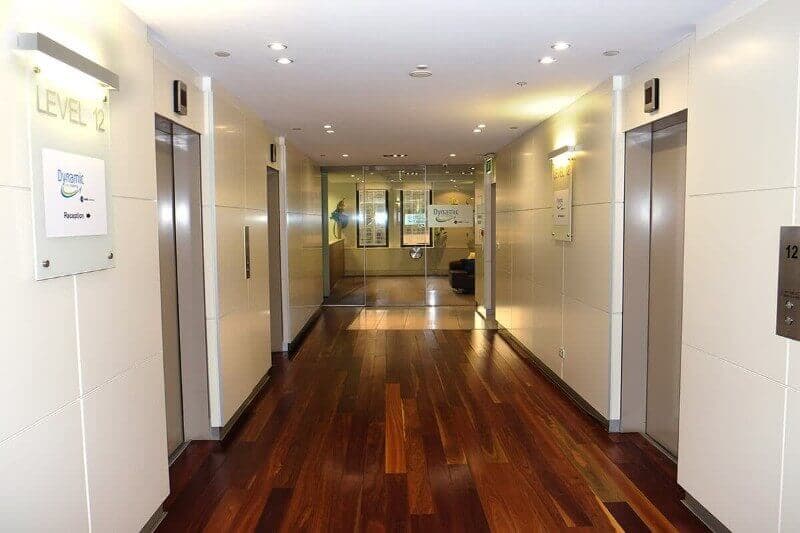
Level 12, 379 Collins Street
Melbourne
View map

Date:
07 Oct 10
09 Nov 10
02 Dec 10

Brisbane

C/- Training Choice, Mezzanine Level, 88 Creek Street
Brisbane
View map

Date:
08 Sep 10
21 Oct 10
07 Dec 10

Canberra

C/- Training Choice, Level 4, 54 Marcus Clarke Street
Canberra
View map

Date: upon demand

Adelaide

C/- Mindfull Computer & Seminar, Level 4, 74 Pirie Street
Adelaide
View map

Date: upon demand

Perth

C/- Training Choice, Level 7, 105 St Georges Terrace
Perth
View map

Date:
26 Oct 10
 

$297 incl GST

Duration: 1 Days

Class Size: 10

Level: intermediate

Times: 9.00am - 5.00pm approx

 
Man and woman sitting at a computer SEEK logo