
Microsoft 365 Copilot is an AI assistant that helps users create, summarize, analyze, and automate tasks across Word, Excel, PowerPoint, Outlook, Teams, OneNote, and more. It integrates your work data (emails, documents, chats) and lets you use natural-language prompts to get results. For example, you can ask Copilot to draft emails, summarize lengthy reports, create slide outlines, or identify trends in spreadsheets.
However, the quality of Microsoft 365 Copilot’s output depends on how you prompt it. This Ultimate Copilot Prompt Library Guide provides ready-made prompts, templates, and best practices to help business users and teams leverage Copilot effectively. In this blog you will find categorized prompts ranging from beginner to advanced levels for each app, and role-based prompt packs for executives, sales, HR, etc.
Introduction
This prompt library is designed for business users, team leads, and productivity champions who want to boost their skills with Copilot. It’s useful for anyone from beginners who need simple examples to advanced users who want to refine complex prompts. By using these curated prompts and best-practice guidelines, you can quickly get useful answers from Copilot and refine your work whether you’re drafting an email, analyzing a dataset, creating a presentation, or managing projects.
What This Library Includes
Our Ultimate Prompt Library is organized by app, by scenario, and by role. It includes:
- App-specific prompt categories: Ready-to-use prompts for Word, Excel, PowerPoint, Outlook, Teams, and OneNote, with examples from basic to advanced.
- Role-based prompt packs: Sets of prompts tailored for common business functions (executives, sales, HR, marketing, finance) so each role can automate its routine tasks.
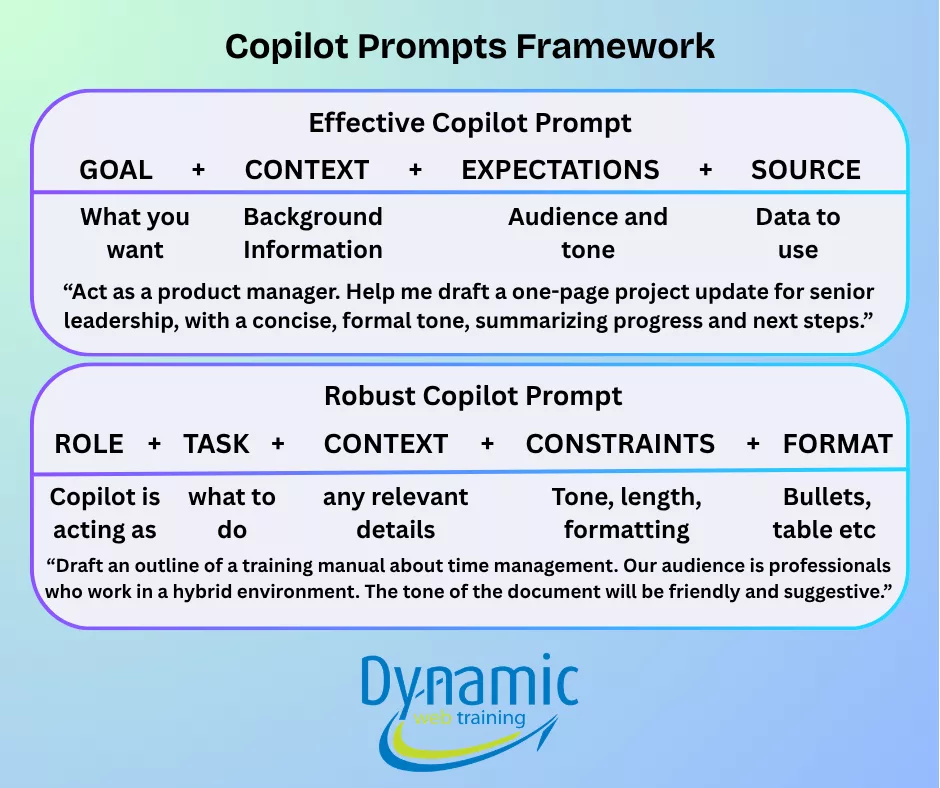
- Prompt-writing framework: A simple formula for constructing effective prompts. We will explain how to add goals, context, tone, audience, and data sources.
- Prompt templates: Reusable prompt templates for emails, documents, meetings, etc., with placeholders you can fill in (like [audience], [tone], [deadline]). We will provide at least 10 universal templates you can copy.
- Advanced techniques: Tips like chaining prompts, asking for multiple outputs (versions, tables), adding constraints, and iterative refinement.
- Common pitfalls and fixes: Examples of vague or overbroad prompts and how to improve them, plus tips for verifying Copilot’s output.
Each section of the library is accompanied by “copy-ready” prompt examples. You can select a prompt, replace placeholders (like [project], [audience], [tone]), and paste it into Copilot.
Crafting Effective Prompts: Framework & Best Practices
An effective Copilot prompt usually has at least one clear goal and often includes context, style, and format.
Best Practices:
- Start with the role/purpose (e.g. “Act as a market analyst”)
- Keep the prompt specific and focused. For example, instead of “Explain these sales figures,” use “Analyze the sales figures in this table and highlight the top three trends for my finance team.”
- Break complex tasks into steps or chain prompts. – Always review Copilot’s output for accuracy.
- If you need several items (e.g. bullet list, Q&A), explicitly ask for that format. Also, mention any formatting needs (e.g. “return the result as a table” or “use bullet points”).
App-Specific Prompts: Sample Prompt Library
Word prompts
Common tasks in Word include drafting text, editing for tone, summarizing documents, or converting notes into formatted content. Examples of use cases: writing reports, polishing paragraphs, summarizing long memos, or expanding bullet points into prose.
- Beginner level
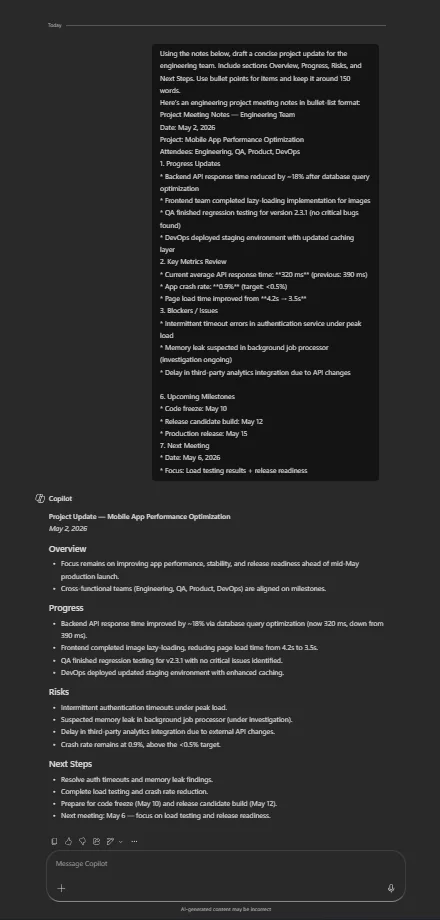
- Prompt: “Using the notes below, draft a concise project update for the engineering team. Include sections Overview, Progress, Risks, and Next Steps. Use bullet points for items and keep it around 150 words.”
- Usage: Paste project meeting notes (bullet list) as input. Copilot outputs a formatted status update memo.
- Variation: “Write a brief progress report to the engineering team based on these notes. Focus on milestones reached and any blockers.”
- Advanced level
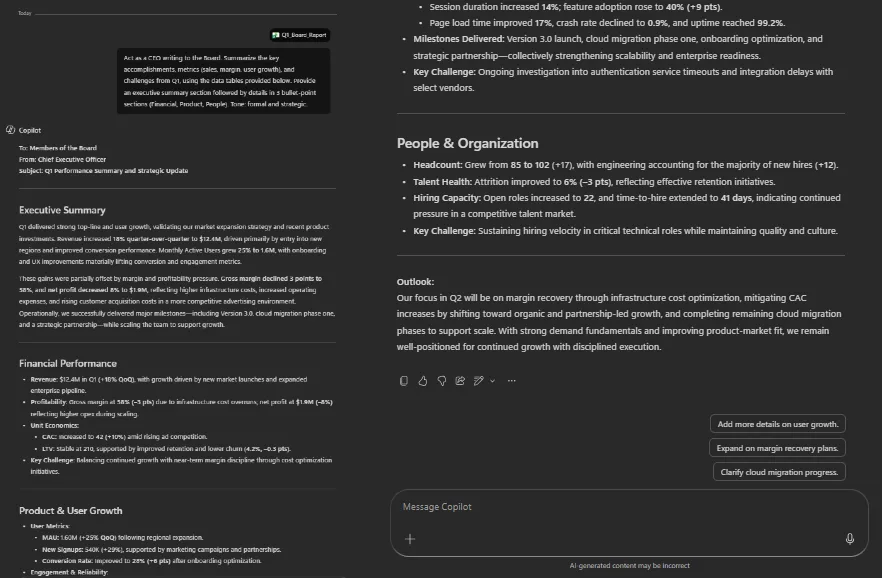
- Prompt: “Act as a CEO writing to the Board. Summarize the key accomplishments, metrics (sales, margin, user growth), and challenges from Q1, using the data tables provided below. Provide an executive summary section followed by details in 3 bullet-point sections (Financial, Product, People). Tone: formal and strategic.”
- Usage: Provide Q1 KPIs, a list of milestones, and issues. Output: a one-page board report.
- Variation: “Prepare a 1-page summary for the Board of Directors covering our quarter’s performance. Include an executive summary, key numbers, and main challenges.”
Excel prompts
In Excel, Copilot can analyze data, generate formulas, and suggest charts. Use cases include data analysis, trend spotting, generating visuals, or extracting insights.
- Beginner level
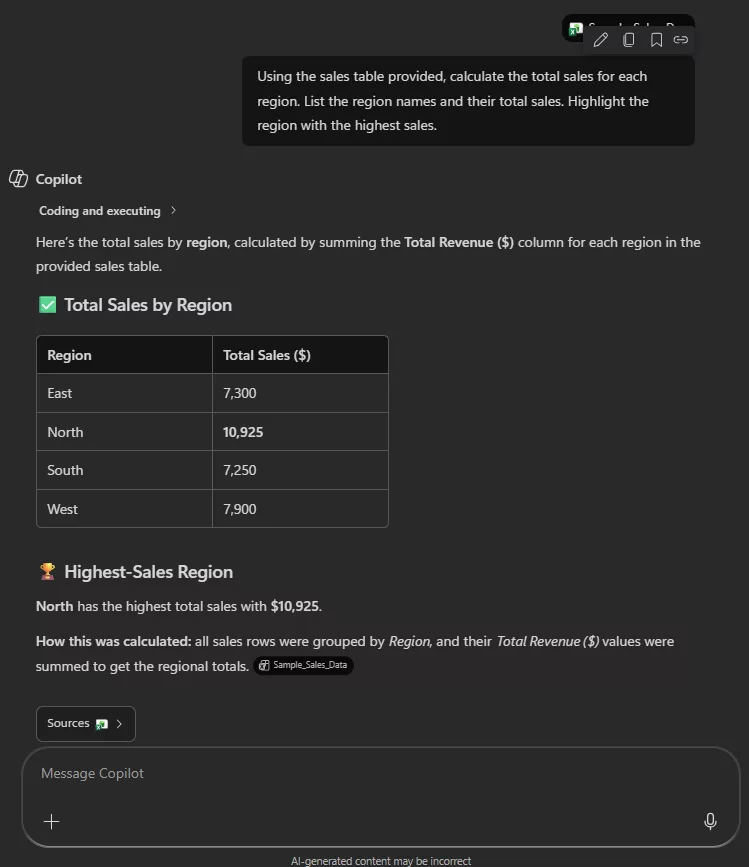
- Prompt: “Using the sales table provided, calculate the total sales for each region. List the region names and their total sales. Highlight the region with the highest sales.”
- Usage: Provide an Excel table of sales data by row. Copilot returns formulas or summary tables.
- Variation: “Create a summary table in Excel that shows total revenue per region and identify which region had the highest total.”
- Advanced level
- Prompt: “Analyze the sales data for the last 12 months given in the spreadsheet. Identify the three most important trends or patterns (e.g., seasonality, growth, anomalies). Suggest an appropriate chart type to visualize each trend and explain why.”
- Usage: Input a time-series sales table. Copilot lists trends and chart recommendations.
- Variation: “Examine the monthly revenue figures in the table. What key patterns do you see? Recommend charts to illustrate these patterns to management.”
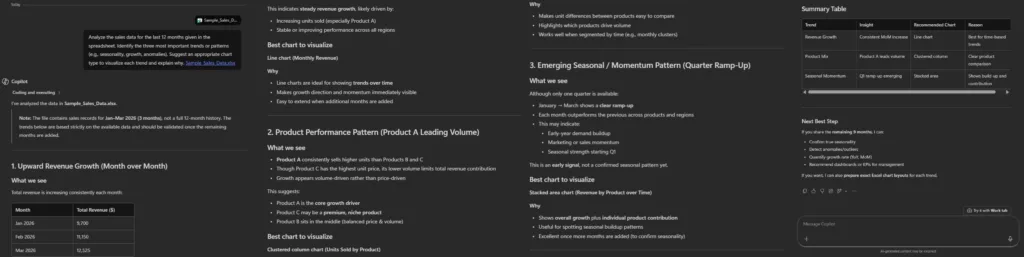
With Copilot in Excel, users can now clean data with just one click” to fix inconsistencies. To learn how to use Copilot in Excel Web check out our blog Microsoft 365 Copilot Workflows in Excel for Web.
PowerPoint prompts
For presentations, Copilot can outline slides, generate titles/bullets, and craft speaker notes. Use cases include converting documents to decks, brainstorming slide content, or polishing slides.
- Beginner level
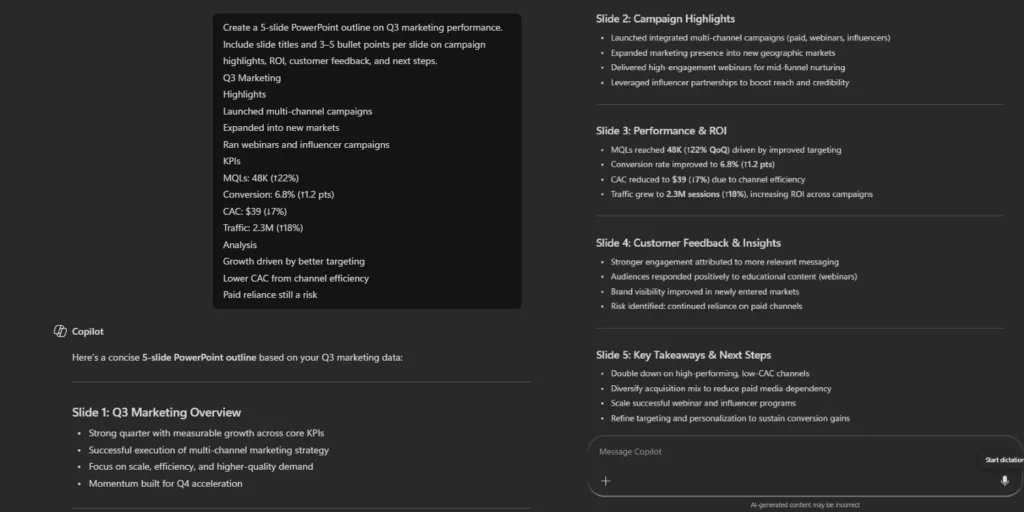
- Prompt: “Create a 5-slide PowerPoint outline on Q3 marketing performance. Include slide titles and 3–5 bullet points per slide on campaign highlights, ROI, customer feedback, and next steps.”
- Usage: Provide bullets: “Q3 marketing highlights, KPIs, analysis points”.
- Variation: “Generate a simple 5-slide presentation outline summarizing our Q3 marketing results, with an executive summary slide at the start.”
- Advanced level
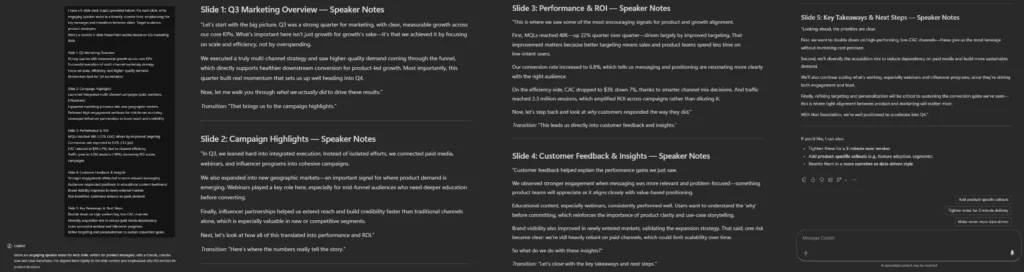
- Prompt: “I have a 6-slide deck (topics provided below). For each slide, write engaging speaker notes in a friendly, concise tone, emphasizing the key messages and transitions between slides. Target audience: product managers.”
- Usage: List slide titles or bullet contents. Copilot produces paragraph notes for each.
- Variation: “Turn these slide bullet points into a spoken presentation script with an enthusiastic tone.”
Teams prompts
In Teams, Copilot can recap chats/meetings and prepare follow-ups. Use cases: meeting summaries, action item extraction, Q&A, and preparation.
- Beginner level
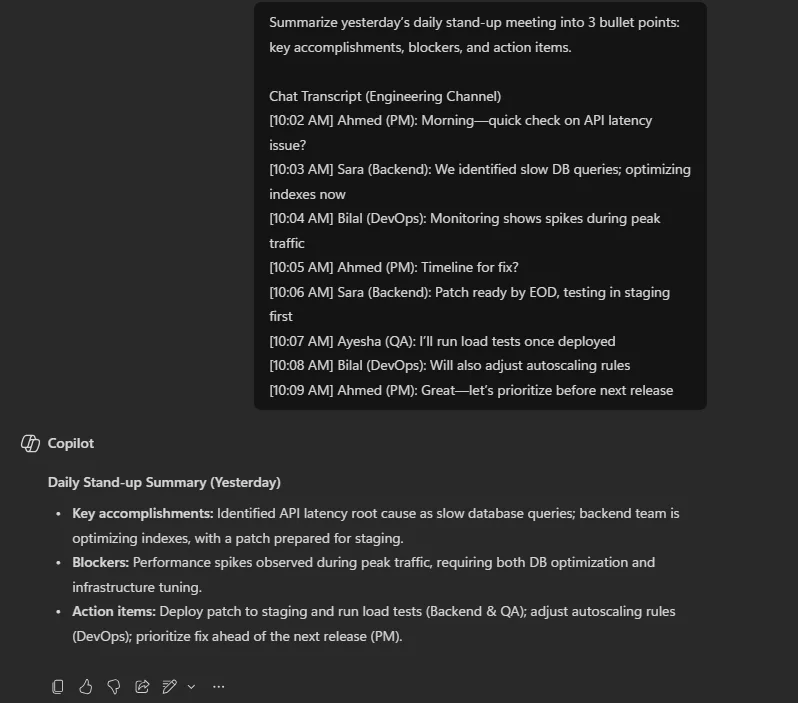
- Prompt: “Summarize yesterday’s daily stand-up meeting into 3 bullet points: key accomplishments, blockers, and action items.”
- Usage: Provide chat transcripts or notes.
- Variation: “List the main decisions and action items from today’s team meeting.”
- Advanced level
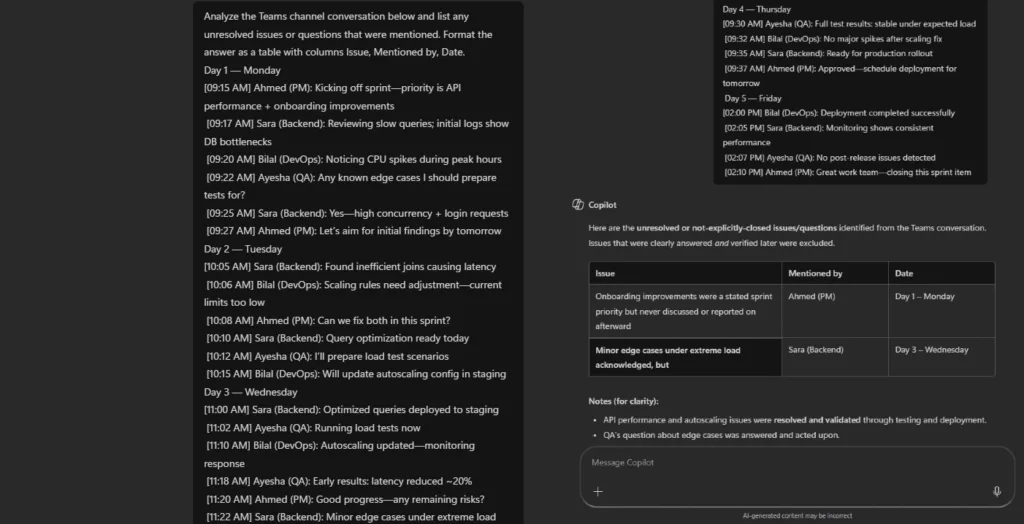
- Prompt: “Analyze the Teams channel conversation below and list any unresolved issues or questions that were mentioned. Format the answer as a table with columns Issue, mentioned by, Date.”
- Usage: Paste a multi-day chat log. Copilot returns a table of open items.
- Variation: “From this meeting transcript, extract all open tasks and who is responsible, in table form.”
Prompt Packs by Role/Function
Different roles have different needs. We organize extra prompts into packs for common functions:
- Executive Leadership: Focus on strategy, summaries, and reports. Useful prompts might include creating risk assessments or CEO memos.
- Examples:
- “Draft a concise quarterly board update highlighting KPIs and challenges.”
- “Summarize our latest strategic plan into 3 key objectives.”
- Examples:
- Sales & Customer Success: Focus on client communication and analysis.
- Examples:
- “Write a follow-up email to a prospective client after our demo, addressing common objections.”
- “Generate a summary of last week’s customer calls with suggested next actions.”
- Examples:
- HR & People Ops: Focus on writing policies and communications.
- Examples:
- “Create a job description for a new [Position Title] with key skills and responsibilities.”
- “Draft an onboarding email to welcome a new hire on their first day.”
- Examples:
- Marketing & Communications: Focus on creative content and briefs.
- Examples:
- “Generate ideas for a social media campaign targeting [Audience] about [Product].”
- “Outline a content calendar for next month’s blog posts.”
- Examples:
- Finance & Operations: Focus on analysis and reports.
- Examples:
- “Explain the key variances in this budget report for the finance manager.”
- “Create a financial summary chart with commentary on this quarter’s expenses.”
- Examples:
Advanced Prompting Techniques
Once you’re comfortable with basic prompts, try these advanced ideas:
- Role-playing: Start prompts with “Act as a [role/profession]” to get answers in a specific perspective. E.g. “Act as a marketing expert and create…”
- Multiple outputs: Ask for variations. E.g. “Give me three versions of this email: formal, friendly, and casual.” Copilot will return multiple alternatives.
- Structured output: Ask Copilot to format results, e.g. “Provide the answer as a table with columns for Issue, Impact, Recommendation.”
- Chaining prompts: Break tasks into steps. First ask for a summary, then ask Copilot to expand or refine it. Microsoft suggests you’ll likely follow up with another prompt for best results.
- Constraints: Limit length or style. E.g. “Summarize in under 200 words” or “Use bullet points only.”
- Comparisons: Ask Copilot to compare options. E.g. “Compare Project A and B on budget, timeline, and ROI in a table.”
- First draft + revise: Get a rough draft, then ask Copilot to improve it. For example, “Rewrite the above in a more engaging tone.”
These techniques let you squeeze more value from Copilot. For instance, one might first ask “Analyze this data” and then ask “now create an executive summary of the analysis”. Remember to verify outputs at each step, since AI can hallucinate. Microsoft cautions that Copilot responses can sometimes be incorrect, so always cross-check important facts.
Prompt Templates
Below are some copyable prompt templates. They use placeholders in brackets, replace them with your content.
Universal Templates
- Act as a [role]. Help me [task] for [audience] using the information below. The tone should be [tone]. Return the answer in [format].
- Write a brief [document type] about [topic] for [audience]. The purpose is [goal]. Use a [tone] tone and include [sections or features].
- Summarize [this document/these notes] as a list of [key points, conclusions, questions] for [stakeholder].
- List 5 ideas for [subject], focusing on [key requirement], suitable for [audience].
- Translate the following text to [language], maintaining a [formal/informal] tone: “[text]”
- Compare [item 1] and [item 2] in terms of [criteria] in a table format.
- Brainstorm [number] creative headlines for [topic] aimed at [audience].
- Outline a presentation about [topic] with [number] slides, including titles and bullet points.
- Check this email draft and improve clarity and tone: [paste email text].
- Generate a project plan with tasks and deadlines for [project name].
Document Template
- Turn these notes into a [document type] for [audience]. Make it [concise/engaging/formal] and include [outline, headings, bullet points] as needed.
- Create a [length] [type: report, brief, proposal, etc.] about [topic] that covers [main points].
Email Template
- Write an email to [recipient role or name] about [topic]. The goal is [purpose], and it should be written in a [friendly/formal/urgent] tone.
- Draft a follow-up email to [recipient] regarding [issue], referencing [previous communication] and asking [question/action].
Meeting Template
- Summarize this meeting transcript, listing key decisions, action items, and open questions.
- Draft an agenda for a meeting on [topic] with objectives: [list objectives]. Include time allocations for each agenda item.
These templates serve as starting points. You can adapt them for specific scenarios. The key is to provide Copilot with enough structure, so it knows exactly what you need.
We also offer a structured training course to master Copilot and prompt engineering. The course covers practical skills, complete with examples and hands-on labs.
Conclusion: Accelerate Your Work with Copilot Prompts
This Ultimate M365 Copilot Prompt Library is your one-stop guide to getting the most out of Copilot. By using these curated prompts and templates, you’ll start working faster and smarter: drafting documents, analyzing data, and communicating with ease. Follow the framework and best practices outlined here to craft clear, actionable prompts. As Microsoft emphasizes, a clear goal and context in your prompt leads to the best results. Remember to verify Copilot’s outputs, iterate when needed, and share your own successful prompts with your team (Copilot allows saving and sharing prompts in a Copilot Lab).
Answer: A good prompt clearly states the goal, provides relevant context, and specifies any constraints (tone, format, audience). Include specifics like “for [audience]” or “in [style]” to guide Copilot.
Answer: Avoid vague or overly broad prompts, mixing multiple unrelated tasks in one prompt, and not specifying the format. Also, don’t rely on Copilot for unsupported use cases (like legal or medical advice).
Answer: Only if your organization’s policies allow it. Copilot is designed for enterprise use and integrates with your data securely, but always follow your IT and compliance guidelines.
Answer: Consistency comes from clear, repeatable prompts. Use the same structure and keywords each time. If needed, run Copilot multiple times and compare outputs.
Answer: Copilot can organize and rewrite your notes. You can turn unstructured notes into lists, plans, or summaries.
