
Power BI reports can slow down for a variety of reasons, from overly complex visuals to inefficient data models or heavy DAX calculations. A goof-looking dashboard means nothing if slicers lag or visuals take forever to load. Slow performance often boils down to three main culprits: visual complexity, data model issues, or inefficient DAX formulas.
A poorly structured data model strains the in-memory engine, for example, using a single flat table with millions of unique values can place a heavy load on your device. And bad DAX measures, for instance heavy use of FILTER() or iterators on large tables, can choke the formula engine.
The good news is that you can systematically find and fix these bottlenecks. In this Power BI tutorial, we’ll walk through a practical workflow using Power BI’s Performance Analyzer and the external tool DAX Studio to diagnose slow visuals and make them fast again.
Step 1: Identify Slow Visuals with Performance Analyzer
The first step in any Power BI performance tuning exercise is to pinpoint “what is slow”. Power BI Desktop’s Performance Analyzer is a built-in tool that helps do exactly that.
Go to View > Performance Analyzer in Power BI Desktop then click Start Recording.
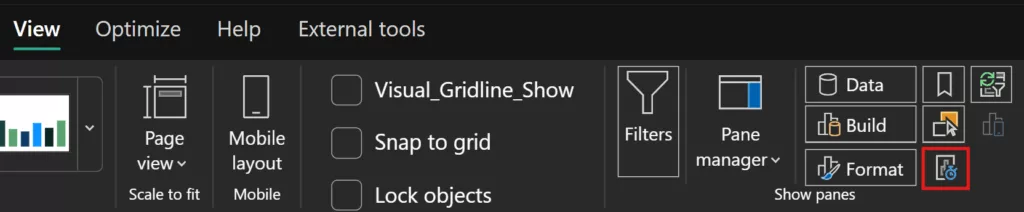
Figure 1: Access the Performance Analyzer from the View ribbon.
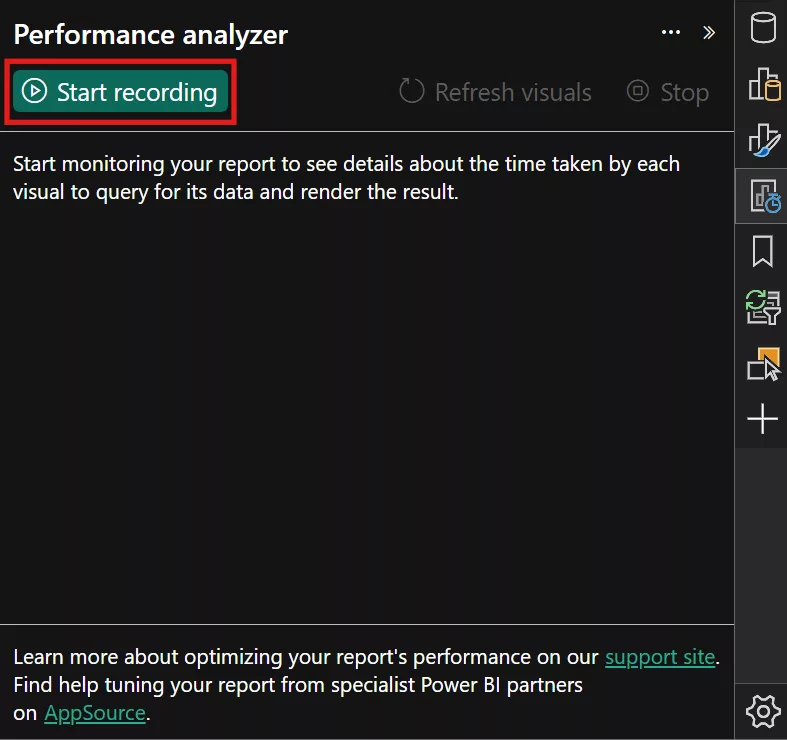
Figure 2: Click Start Recording to begin monitoring visual speeds.
Now perform the action that’s slow (for example, load the page or change a slicer). Performance Analyzer will log each visual on the page and how long it took to update.
Each visual’s load time is broken down into three parts:
- DAX Query execution time: the time spent running the underlying calculations (your measures and queries).
- Visual display (rendering) time: the time to draw the visual on the screen (including formatting and rendering the chart or table).
- “Other” time: miscellaneous overhead, such as waiting for other visuals or retrieving data from the source.
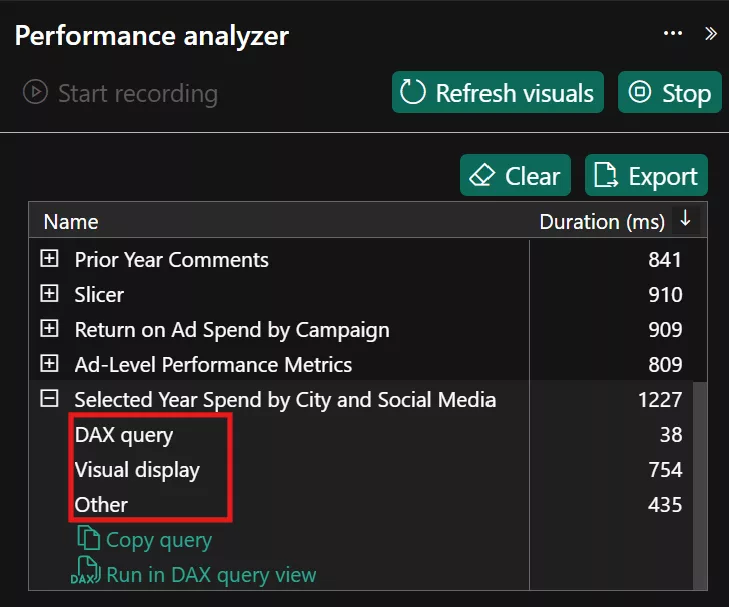
If most of a visual time is in the DAX query portion, the bottleneck is likely the calculations (DAX measures or the data model). If the “Visual display” time dominates, the issue may be that the visual is too complex, or there are simply too many visuals on that page. If the majority is in “Other”, it often indicates waiting on other processes, for example, an overloaded page where visuals queue up behind each other, or possibly data retrieval delays.
Pro tip: Quickly check you worst performing visuals by Sorting the Performance Analyzer results by Total time i.e. “Duration (ms)”. Once you spot a slow visualisation, expand it in the Performance Analyzer pane. This helps you determine the nature of the performance problem.
Step 2: Export the DAX Query Associated with Slow Visualisation
After identifying a slow visual regarding DAX, the next step is to capture the DAX query behind that visual. Performance Analyzer lets you copy the query that Power BI generated for the visual. In the Performance Analyzer pane, click on the slow visual name to expand its details. There will be an option to “Copy query”. This copies the DAX query text to your clipboard.
Now it’s time to switch to DAX Studio for deeper analysis. DAX Studio is a free external tool (developed by Darren Gosbell) that connects to your Power BI data model and allows you to run and analyse DAX queries outside of Power BI.
Make sure your Power BI Desktop file is open, then launch DAX Studio. You can also launch it via the External Tools ribbon in Power BI Desktop.
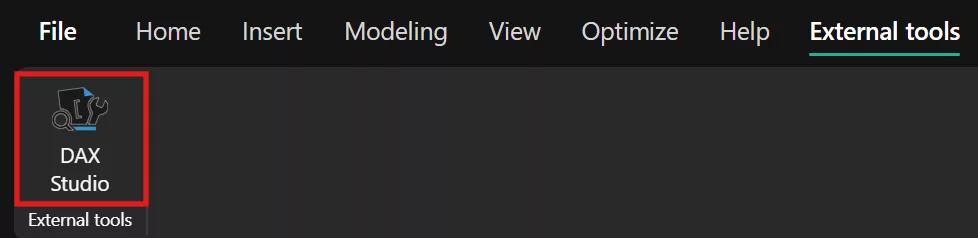
Connect to the model: In DAX Studio, you’ll see your model tables on the left. Paste the copied DAX query into the main query window of DAX Studio. This is the same query that was making your visual slow.
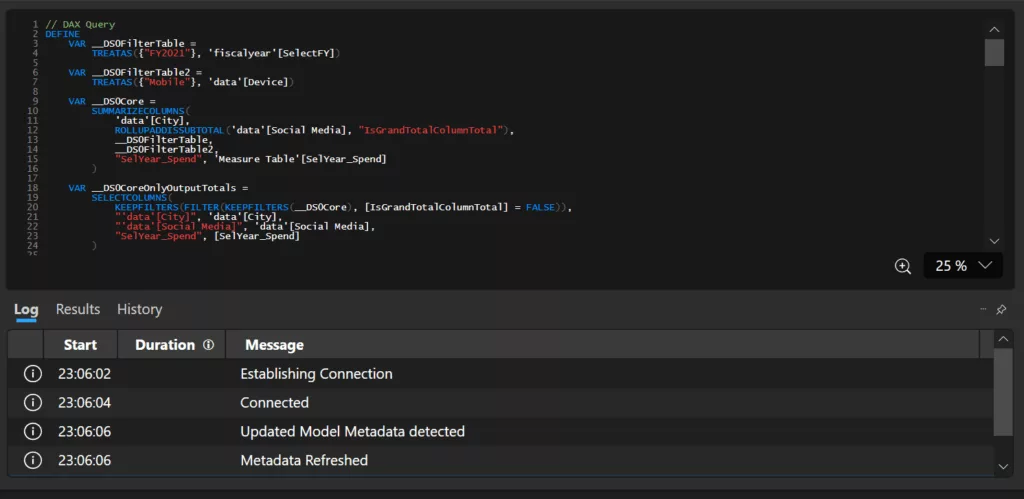
Before running it, enable some diagnostic features: On the top ribbon in DAX Studio, click on Server Timings and Query Plan to turn them on. These options tell DAX Studio to capture detailed performance metrics and the execution plan when the query runs. Now hit the Run button (or press F5) to execute the query.
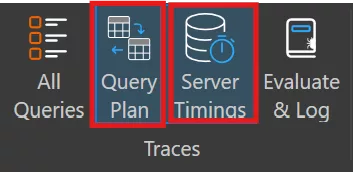
DAX Studio will execute that DAX query against the Power BI model (using the Analysis Services engine behind the scenes) and capture detailed timing information.
Step 3: Understand DAX Studio’s Performance Metrics
Once the query finishes, DAX Studio’s output will be shown in Server Timings tab and a Query Plan tab. Let’s interpret the key metrics you’ll see in the Server Timings results:
- Total time: The total duration of the query is in milliseconds. This is how long the visual’s query took to run end-to-end.
- Storage Engine (SE) CPU time: How much CPU time was spent in the Storage Engine. The Storage Engine handles raw data scanning and is highly optimized and multithreaded (it can use multiple cores in parallel).
- Formula Engine (FE) time: How much time was spent in the Formula Engine. The Formula Engine runs the queries and performs calculations that the Storage Engine. It handles things like complex calculations, iterating over rows, etc. DAX Studio shows the split between SE and FE time both in milliseconds and as a percentage of total.
- SE Queries: The number of individual Storage Engine queries executed. Complex DAX measures can be broken into many small SE queries. For instance, you might find that your one visual’s DAX query has triggered SE sub-queries behind the scenes.
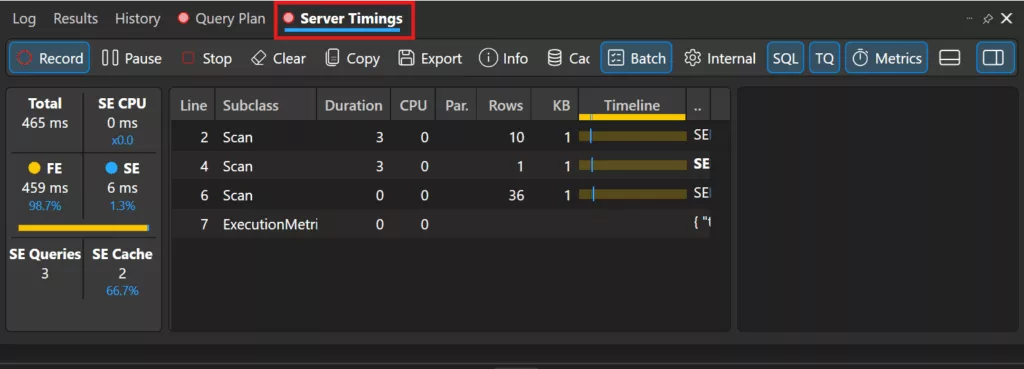
These metrics are crucial for diagnosing the problem. High SE time suggests the bottleneck is reading/scanning data (possibly a very large dataset or high-cardinality operation). High FE time indicates the DAX calculation itself (the formula engine work) is the slow part, often due to complex or inefficient DAX expressions that don’t fully leverage the fast storage engine. A high number of SE queries (hundreds or more) is a red flag that your DAX measure is doing something iterative or repeatedly hitting the data source for many small results.
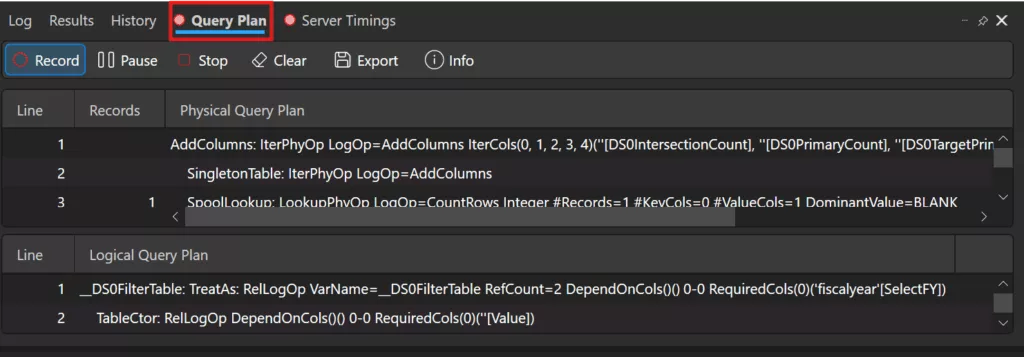
In addition, DAX Studio’s Query Plan tab provides a detailed logical and physical query plan for the DAX query. This is an advanced view intended for seasoned pros, and it can be quite complex to read. Essentially, it shows the steps the Formula Engine took to break down your DAX into operations and what the Storage Engine did in response.
Final Checklist: Troubleshooting Slow Power BI Reports
Whenever you face a sluggish Power BI report, use this checklist to systematically find and fix the issues:
- Run Performance Analyzer to identify slow visuals and see where the time is spent (DAX vs rendering vs other). Focus on the worst offenders first.
- If Visual rendering or Other time is high: It’s likely a front-end issue. Reduce the number of visuals or the complexity on that page. Consider splitting visuals into multiple pages or using summary visuals.
- If the visual spent most of its time on DAX, then export its DAX query via Performance Analyzer. This gives you the DAX to troubleshoot.
- Use DAX Studio with the captured query to analyse performance. Enable Server Timings (and Query Plan) and run the query. Note the Total time, SE vs FE time split, and SE query count.
- Diagnose the bottleneck:
- If Formula Engine time is high (or many SE queries): The DAX measure likely needs optimization. Simplify the DAX, use proper filters/aggregators, and avoid iterative calculations on large sets.
- If Storage Engine time is high: Check your data volume and model. Look for high-cardinality columns or large tables. Simplify the model, remove unused or super-detailed fields, and reduce cardinality through grouping.
Conclusion
By following this workflow and checklist every time you troubleshoot a slow report, you’ll develop an intuition for where the bottleneck lies, be it the visual, the DAX, or the data model. Performance tuning in Power BI is part science, part art, but with tools like Performance Analyzer and DAX Studio in your toolkit, you have a proven, step-by-step method to turn sluggish reports into fast, responsive, and user-friendly dashboards.
If you want to dive deeper into these techniques and sharpen your skills, our hands-on Power BI training courses are a great way to master performance optimization with expert guidance.
Frequently Asked Questions (FAQ)
Performance Analyzer is a built-in Power BI tool that shows how long each visual takes to load, broken down by categories like DAX query, visual rendering, etc. You can open it from the View ribbon in Power BI Desktop.
• Inefficient DAX formulas:
Using iterative functions (e.g. SUMX, FILTER) or complex row-by-row calculations on large tables can dramatically slow down measure performance.
• Overly complex measures:
Deeply nested or overly complicated DAX measures, for example, multiple nested CALCULATE or excessive use of ALL filters.
• Too many visuals on one page:
Crowding a report page with too many charts, tables, or other visuals can overload the Power BI engine.
• Large or unoptimized data model:
If your dataset is extremely large or your data model isn’t optimized, every query can be slow.
