
To recall an email in Outlook, open Sent Items, open the message, and choose Recall Message (new Outlook) or Actions > Recall This Message (classic Outlook). Recall only works if you and the recipient are on Microsoft 365 accounts in the same organisation; it cannot recall emails sent to external addresses like Gmail.
We have all felt it: the split-second of dread after clicking Send. The good news is that Outlook can sometimes pull a message back. The important news is that it only works in specific conditions, so this guide covers both the steps and the limits, plus what to do when recall isn’t an option.
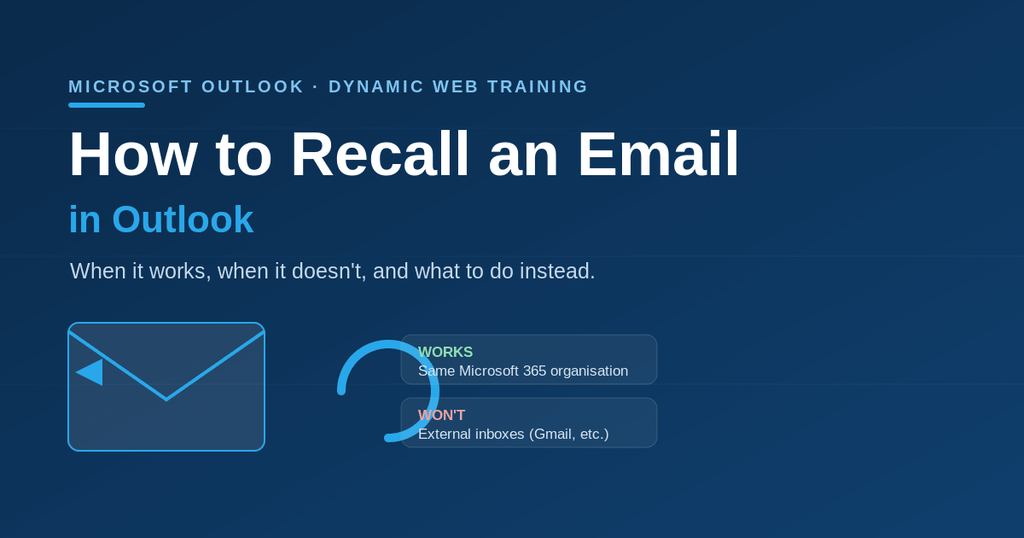
Can you recall an email in Outlook?
Yes, but with conditions. Microsoft rebuilt message recall in 2023 as a cloud-based feature, which made it far more reliable than the old version, around a 90% success rate, and it can now pull back a message even after the recipient has opened it.
The catch is that recall only works inside your own organisation: both you and the recipient must be using Microsoft 365 work or school accounts on the same Exchange/Microsoft 365 tenant. If you emailed someone outside your organisation, on Gmail, Outlook.com, or any other provider, recall will not work, because Outlook has no control over their inbox.
How do you recall an email in new Outlook?
In the new Outlook for Windows (and Outlook on the web):
- Go to Sent Items in the folder list.
- Double-click the message you want to recall to open it in its own window.
- On the ribbon, select Recall Message.
- Confirm. Outlook attempts to remove the message from the recipient’s mailbox and emails you a Message Recall Report showing whether it succeeded.
How do you recall an email in classic Outlook?
In classic Outlook for Windows:
- Open Sent Items and double-click the message to open it.
- On the Message tab, go to the Move group and select Actions > Recall This Message (in some versions it is directly on the ribbon).
- Choose either Delete unread copies of the message, or Delete unread copies and replace with a new message if you want to send a corrected version.
- Tick Tell me if recall succeeds or fails to get a status notification, then select OK.
Recall can also be started from Outlook for Mac and the Outlook mobile apps, but the classic client-side method is less reliable (roughly 40% success) than the modern cloud-based recall.
When does Outlook recall work, and when does it fail?
Recall works best when all of these are true:
- You and the recipient are on Microsoft 365 accounts in the same organisation.
- The message is still in the recipient’s mailbox.
Recall fails when:
- The recipient is external (Gmail, Outlook.com, another company). This is the most common reason recall doesn’t work.
- The recipient has rules that moved the message out of the Inbox, or is using a non-Outlook email app.
- With the old client-side method, the recipient opened the message before the recall arrived.
In short: internal emails have a good chance; external emails cannot be recalled at all.
How do you know if the recall worked?
The modern recall sends you a Message Recall Report by email, usually within a few minutes, with a link showing the outcome for each recipient: succeeded, pending, or failed. Check that report rather than assuming, especially before you rely on a sensitive message being gone.
What can you do if recall isn’t available?
If the recipient is external or recall fails, you can’t unsend the message, but you can limit the damage:
- Send a prompt follow-up correcting or retracting the information, so the accurate version is the one people act on.
- For the future, turn on a short “undo send” / delay delivery window so you get a few seconds to catch mistakes before mail leaves your outbox.
- Use Schedule send to hold important emails until a set time, giving you a window to change your mind.
How can you avoid needing to recall emails?
The best recall is the one you never need. A few habits help:
- Add the recipients last, after the message is written and checked, so you can’t send early by accident.
- Use a delay-send rule (a 1-2 minute delay on all outgoing mail) as a safety net.
- Let AI proofread before you send. Copilot in Outlook can check tone and catch errors; see our Microsoft 365 Copilot guide.
If your team relies on Outlook every day, a short course pays for itself in fewer mistakes and faster inboxes. Our hands-on Microsoft Outlook training courses cover recall, rules, delay send, signatures and more, in Sydney, Melbourne and Online Live across Australia.
Frequently asked questions
With the modern cloud-based recall in Microsoft 365, yes, it can remove a message even after it has been opened, as long as you and the recipient are in the same organisation. The old client-side recall could not reliably do this.
No. Recall only works within your own Microsoft 365 organisation. If you sent the email to Gmail, Outlook.com, or any external provider, it cannot be recalled, because Outlook has no control over that inbox.
The most common reason is that the recipient is external to your organisation. Recall can also fail if the message was moved out of the Inbox by a rule, the recipient uses a non-Outlook app, or (with the old method) the message was already read.
Yes, recall can be triggered from Outlook on the web, new Outlook, classic Outlook, Outlook for Mac and the mobile apps. The same organisation-only limitation applies everywhere.
There is no fixed countdown, but recall works only while the message is still in the recipient’s mailbox, so act as soon as you notice the mistake. The sooner you recall, the better the chance of success.
Recall tries to remove a message you have already sent (and only works internally). Delay send holds a message in your outbox for a short time before it leaves, giving you a window to stop or edit it. Delay send is more reliable because the message hasn’t gone anywhere yet.
