
To use Copilot in Word, open a document and select the Copilot icon (on the Home tab, or the Copilot button that appears beside your text) to open the Copilot pane. Type what you want in plain English: draft a document from a prompt or an existing file, select text and choose Rewrite to change its tone or length, or ask Copilot to summarise the document. Review every change before you keep it. At work, Copilot inside Word needs a Microsoft 365 Copilot licence; at home, Microsoft 365 Personal and Family plans include it.
Copilot can turn a blank page into a first draft in seconds, tighten a rambling paragraph or pull the action items out of a 30-page report. The results depend on what you ask, though. This guide shows you how to open Copilot in Word, the four jobs it does best, prompts you can copy, and the checks that keep your documents accurate.
What can Copilot do in Word?
• Draft: write a first draft from a prompt, notes, an outline or another file.
• Rewrite: change the tone, length or style of selected text.
• Summarise: pull out the key points, decisions, open questions or action items.
• Answer questions: explain a section, compare ideas or check what a document says, without changing it.
• Edit the whole document: make changes across every page, such as restructuring sections or adding an executive summary, which you then review.
• Reformat: turn text into a table or a list, or make headings consistent.
What do you need to use Copilot in Word?
• At work: a Microsoft 365 Copilot licence assigned by your organisation. Since April 2026, the free Copilot Chat no longer works inside Word for users without a licence. Unlicensed users can still use Copilot Chat in the Microsoft 365 Copilot app or on the web, but it cannot read or edit the document you have open in Word.
• At home: Microsoft 365 Personal and Family subscriptions include Copilot in Word, with a monthly allowance of AI credits.
• The current version of Word: Copilot works in Word for Microsoft 365 on Windows and Mac, Word for the web and Word on iPad. Sign in with the account that has the licence.
If you cannot see Copilot, check that you are signed in with your work or subscription account, update Office (File > Account > Update Options > Update Now), then restart Word. If it is still missing, your IT team may not have assigned a licence or may have turned Copilot off.
How do you draft a document with Copilot in Word?
- Open a new blank document. Copilot offers to help you draft; if it does not, select the Copilot icon to open the Copilot pane.
- Describe what you want: the type of document, the audience, the purpose, the length and the format.
- To base the draft on an existing file, type / and start typing the file’s name, then select it from the list.
- Press Enter and read the draft.
- Ask for changes in the pane (for example “make it shorter” or “add a section on costs”), then keep the version you want and edit it as you would any document.
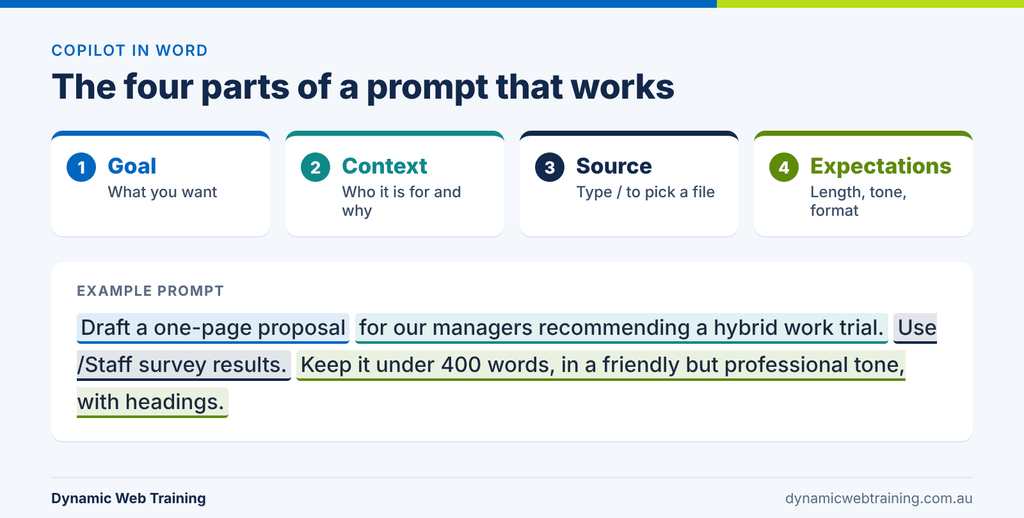
A useful prompt has four parts: the goal (what you want), the context (who it is for and why), the source (files or information to use) and the expectations (length, tone and format). For example: “Draft a one-page proposal for our managers recommending a hybrid work trial. Use /Staff survey results. Keep it under 400 words, in a friendly but professional tone, with headings.”
How do you rewrite or shorten text with Copilot?
- Select the text you want to change.
- Select the Copilot icon that appears in the margin and choose Rewrite, or type an instruction in the Copilot pane.
- Compare the options Copilot suggests and choose the one you want, or ask it to try again.
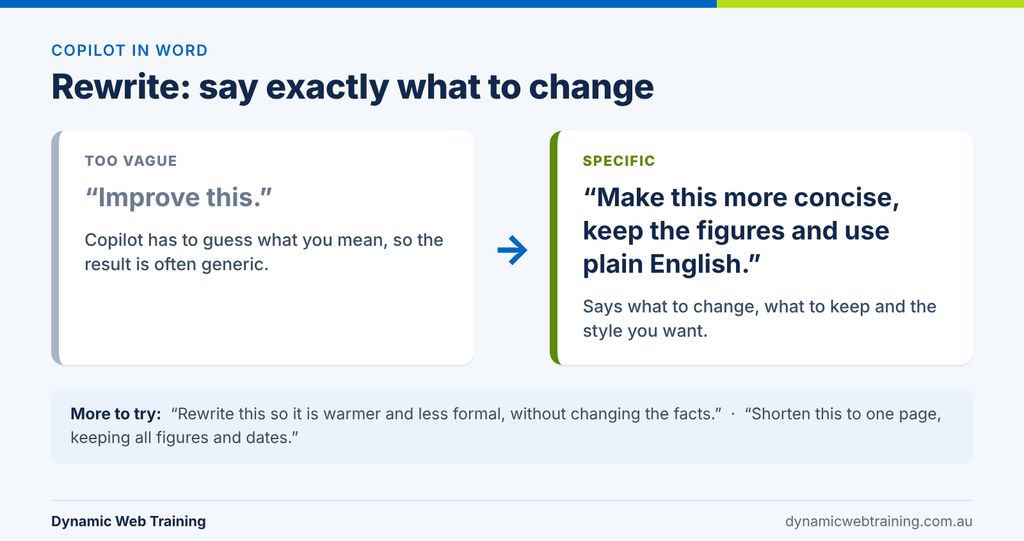
Be specific about the change you want. “Make this more concise, keep the figures and use plain English” gets a better result than “improve this”.
How do you summarise a document with Copilot?
Open the Copilot pane and ask for the kind of summary you need, for example:
• “Summarise this document in five bullet points.”
• “List the decisions and action items, with who is responsible for each.”
• “What are the main risks raised in this report?”
To get an answer without Copilot changing your document, choose Chat only in the Copilot pane before you ask. Summaries can miss or misread details, so check the important points against the original.
How do you make changes across the whole document?
Ask Copilot for the outcome you want and it will make the edits for you, for example “Make all headings sentence case, add a short executive summary at the top and move the budget section to the end.” In shared documents, Copilot shows the proposed changes in the pane first, and nothing changes until you approve it.
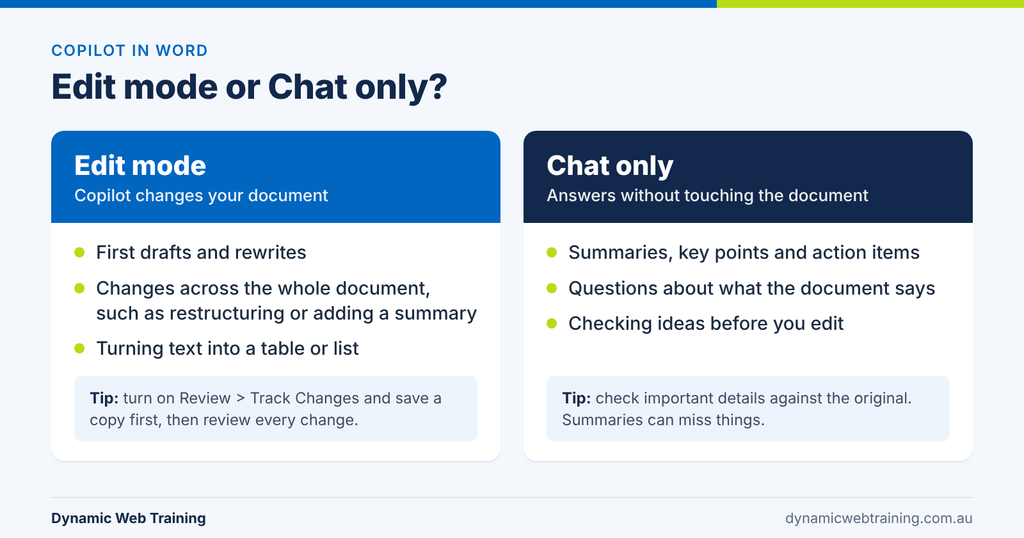
Before asking for big changes, turn on Review > Track Changes and save a copy, so you can see and undo anything you do not want.
What are good Copilot prompts for Word?
| Task | Prompt to try |
|---|---|
| First draft | Draft a two-page project update for senior managers based on /Project notes. Use headings for progress, risks and next steps. |
| Meeting follow-up | Turn /Meeting notes into a short summary with decisions and action items, including owners and due dates. |
| Tone | Rewrite this paragraph so it is warmer and less formal, without changing the facts. |
| Plain English | Rewrite this section for a general audience. Use short sentences and explain any jargon. |
| Length | Shorten this document to one page, keeping all figures and dates. |
| Structure | Suggest a clearer structure for this document and list the headings in order. |
| Review | What questions might a sceptical reader ask about this proposal? |
| Formatting | Turn this list of training sessions into a table with columns for date, topic and trainer. |
For more ready-to-use prompts across Word, Excel, Outlook and Teams, see our Microsoft 365 Copilot prompt library.
What should you check before using Copilot’s work?
• Facts and figures: Copilot can get details wrong, especially numbers, names and dates. Check anything important against your sources.
• Sources: Copilot can only use files you have permission to open, and it may miss information that is not in the files you reference.
• Tone and voice: edit drafts so they sound like you and your organisation.
• Formatting: apply your own styles and templates after drafting so the document matches your brand.
• Sensitive information: follow your organisation’s rules on what can go into a prompt. Work accounts with a Copilot licence include Microsoft’s enterprise data protection, which personal Copilot accounts do not.
Practice on your own document
Take a report or email thread you are working on and ask Copilot for a summary, then a rewrite of one section, then a short draft based on it. Comparing the results with what you would have written is the quickest way to learn which prompts work for you. Copilot works in Excel too; see what Copilot can and cannot do in Excel.
Our Microsoft Copilot training shows your team how to use Copilot in Word, Excel, PowerPoint, Outlook and Teams on real work tasks, in-class in Sydney and Melbourne or Online Live across Australia. Start with the one-day Microsoft Copilot Essentials course. For the bigger picture, see Microsoft 365 Copilot: The Complete 2026 Guide, and for Word skills without AI, our Microsoft Word training courses.
Frequently asked questions
Open a document and select the Copilot icon to open the Copilot pane. Type what you want, such as a draft, a rewrite or a summary, and press Enter. Review Copilot’s suggestions and keep only the changes you want.
Check that you are signed in with an account that has a Microsoft 365 Copilot licence or a Personal or Family subscription, then update Office and restart Word. If Copilot is still missing, your IT team may not have assigned a licence or may have turned it off.
No. At work, Copilot inside Word needs a Microsoft 365 Copilot licence. Microsoft 365 Personal and Family plans include it with a monthly allowance of AI credits. The free Copilot Chat can draft text on the web but cannot edit the document you have open in Word.
Yes. Open the Copilot pane and ask for a summary, key points, decisions or action items. Choose Chat only if you want an answer without Copilot changing the document, and check important details against the original.
Yes. Describe the result you want, such as restructuring sections or adding an executive summary, and Copilot makes the changes for you to review. Turn on Track Changes and save a copy first so you can undo anything you do not want.
Yes. Copilot works in Word for Microsoft 365 on Mac, as well as on Windows, in Word for the web and on iPad, as long as you sign in with an account that includes Copilot.
