
In case you are looking to maximise the power of Excel, then you ought to explore its most powerful feature – The Ability to calculate numerical values using formulas.

Yes, you heard it right!! Just like a calculator, Excel has the power to subtract, add, divide, and multiply numbers to produce results. So, you no longer need to get distracted from your work and look for a calculator when working on Excel. You can do it quickly on Excel with some simple tips and tricks.
Talking of formulas, they are nothing but simple statements constructed of three important entities – Operands, Operator, and Result. The operator is used to equate the two operands to produce a result as follows:
[Operand A] “Operator” [Operand B] = Result
Working with Formulas in Microsoft Excel
What are the common Mathematical Operators in Excel?
Excel uses standard mathematical operators to evaluate formulas. These operators can quickly be selected from the keyboard using the shift key.
| For Addition | Plus Sign (+) | Shift+(+) |
| For Subtraction | Minus Sign (-) | Shift+(-) |
| For Multiplication | Asterisk (*) | Shift+8 |
| For Division | Forward Slash (/) | Shift+(/) |
| For Exponents | Caret (^) | Shift+6 |
An important thing to remember, however, when creating formulas in Excel is that, unlike the usual structure of formulas where the equal sign is used at the END, every equation in Excel must compulsorily BEGIN with an EQUAL sign (=). It is because the cell is equal to, or holds, the resultant (value) of the formula it calculates.
How to Refer to a Cell In Excel When Creating Formulas?
While it is possible to create simple formulas in Microsoft Excel by using only numbers (Eg, = 6*6 or = 10+3), if you have too many calculations to make, it is preferable to use cell addresses to create the formulas. Concerning Excel, this practice is called “Cell Reference.”
The best thing about using cell references is that the results of your formulas are accurate. It is because cell reference allows you to change the value of the referenced cell, without the need to rewrite the equation.
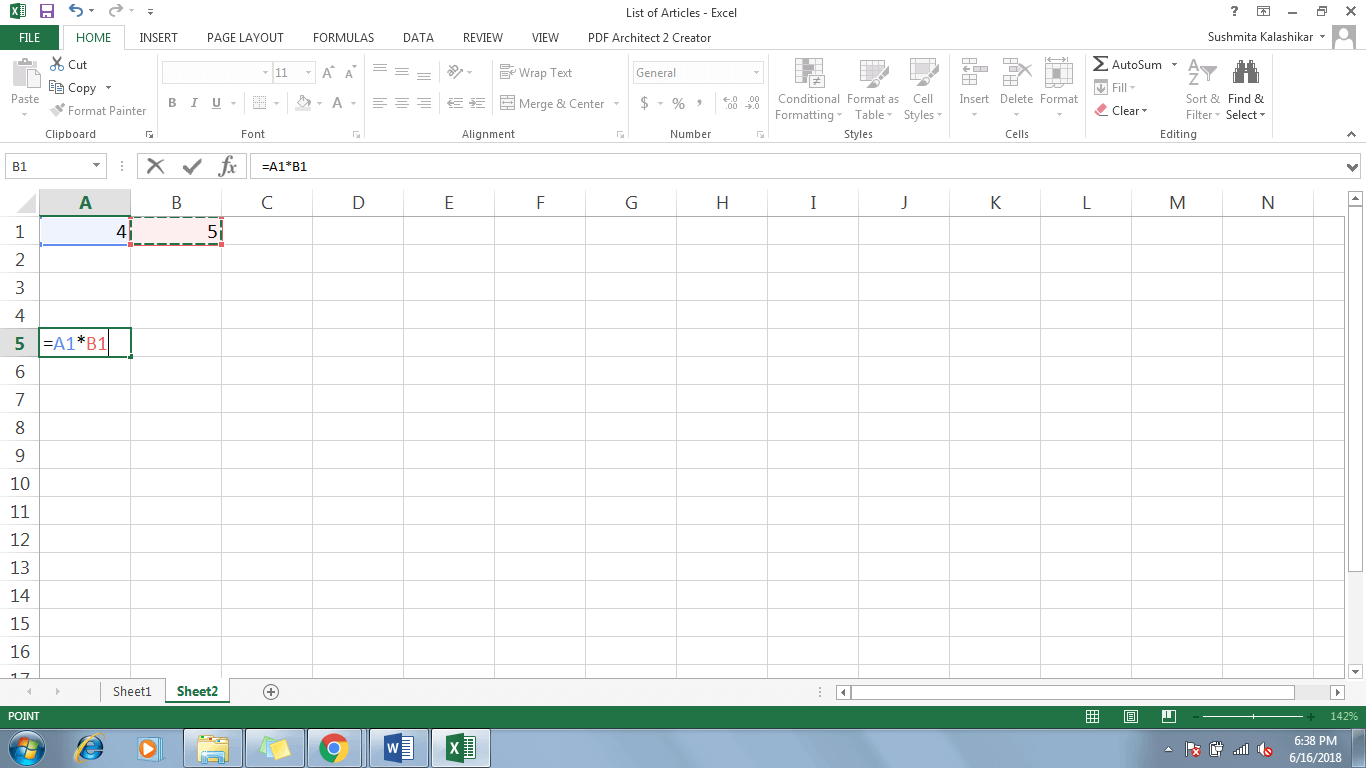
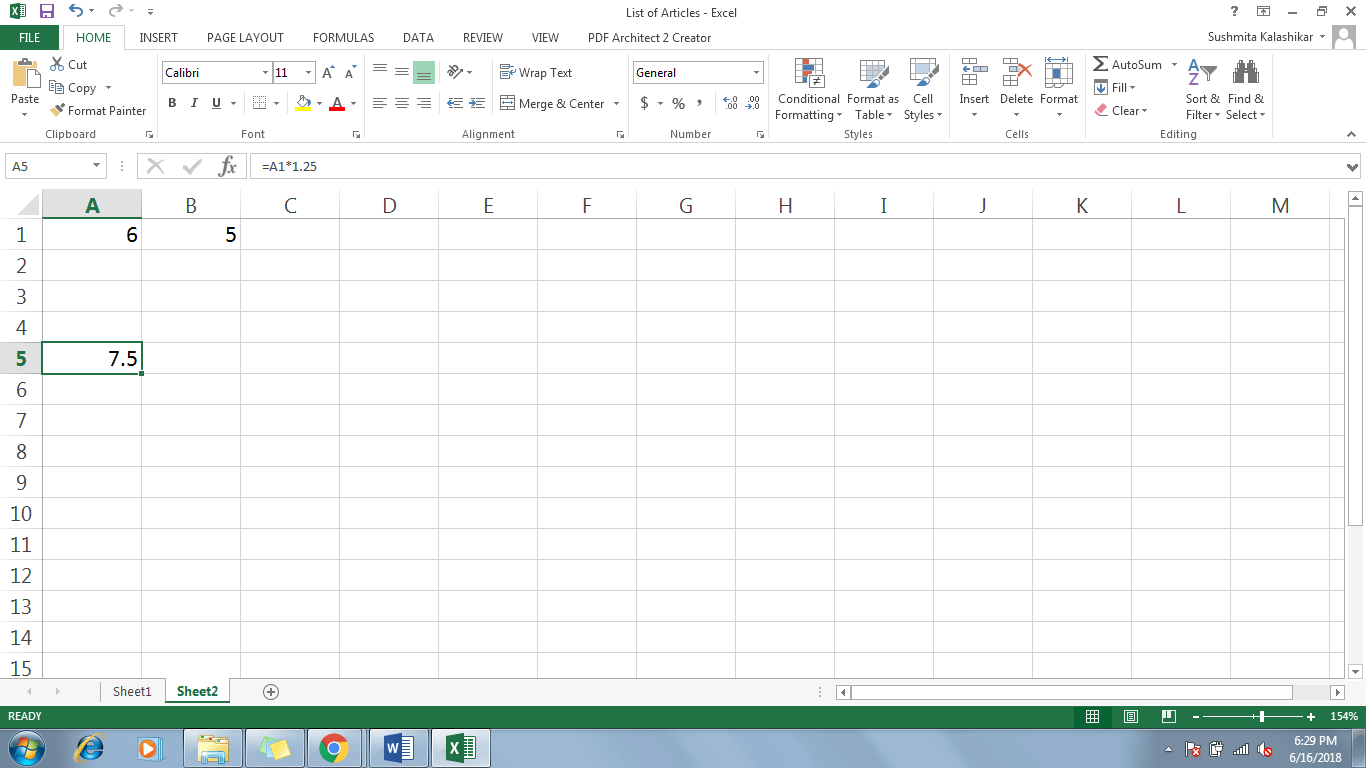
In the below-mentioned example, cell A5 multiplies the value of cells A1(4) and B1(5) by making cell references.
To create the formula, all you need to do is to follow these simple steps:
- Click inside cell reference A5
- Type the Equals sign (=), since formulas in Excel always begin with it. Notice how the formula is also visible on the formula bar, allowing you to make modifications directly in the formula bar.
- Select the cell you want to be referenced first in the formula (A1 in this example).
- Type the operator you wish to use (Multiplication sign * in this example).To select * sign, click Shift+8 on top row of keyboard.
- Next, select the cell you want to be referenced second in the formula (B1 in this example).
- As soon as you press Enter, Excel automatically calculates the equation and displays the result in cell A5 as follows:
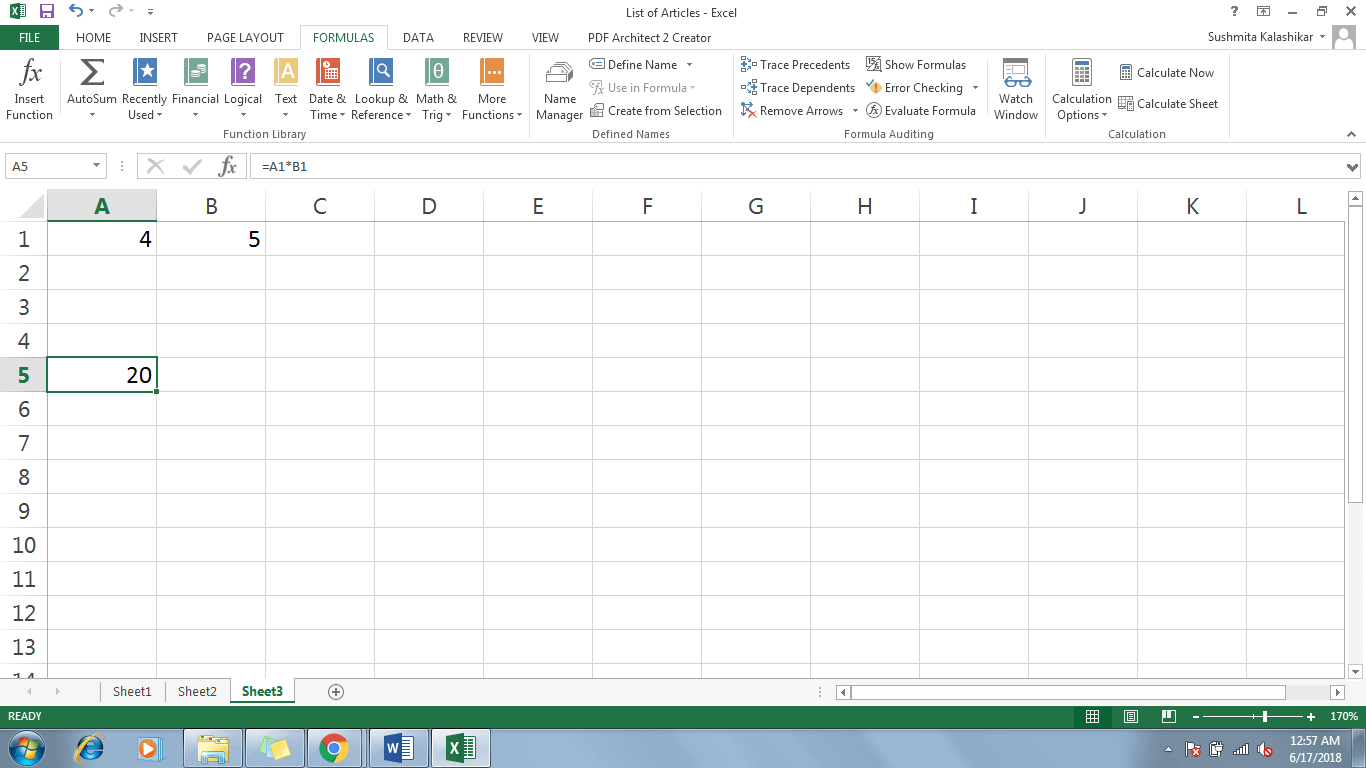
A significant strength of Excel spreadsheets is that, if you change any of the values in the referenced cells (A1 or B1), Excel automatically recalculates the formula to display a new result in cell A5 as follows:
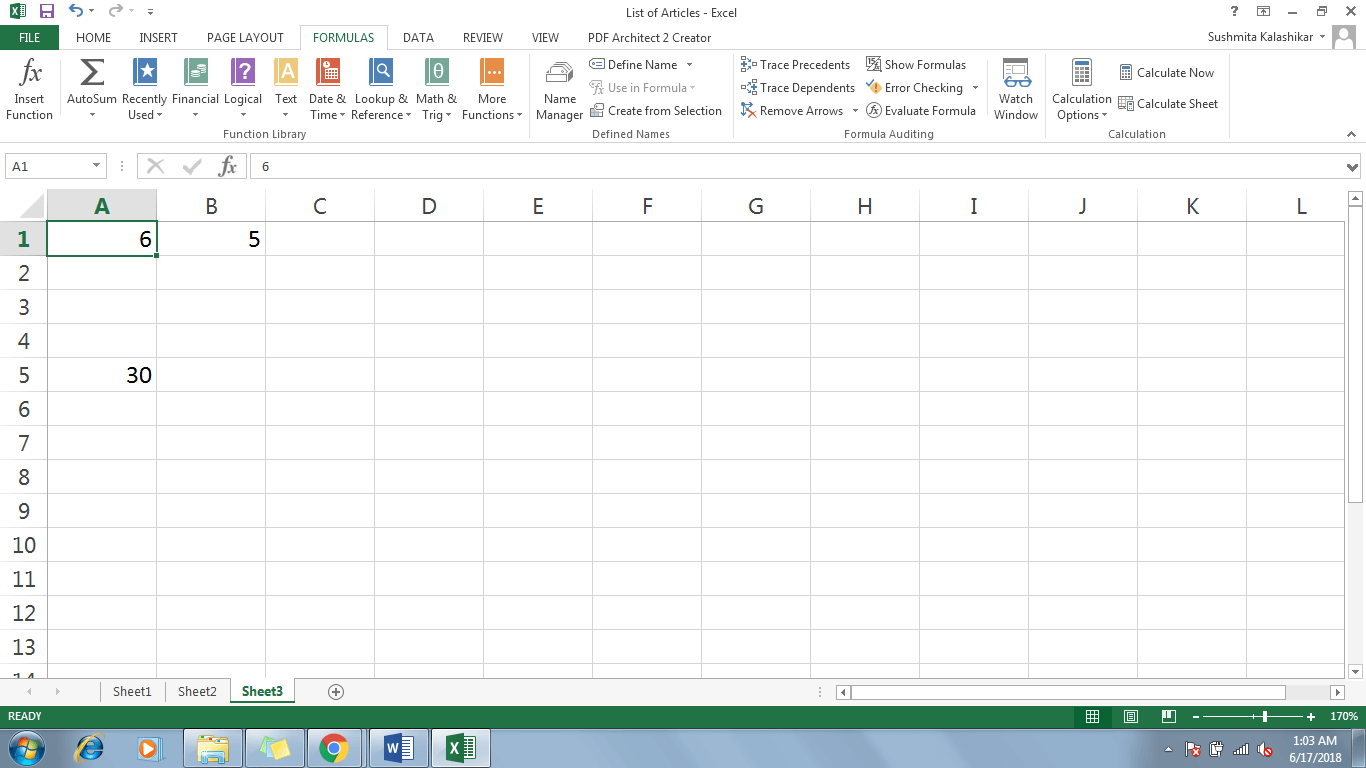
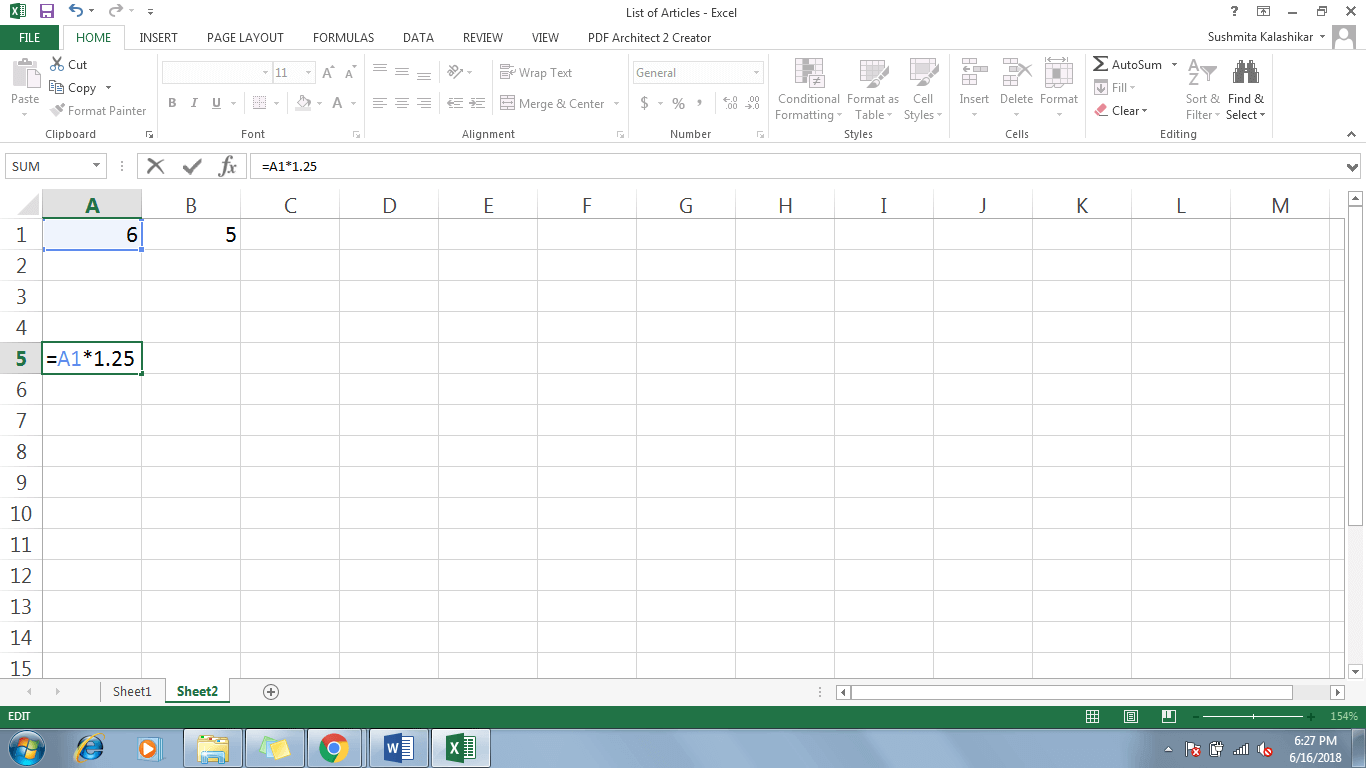
Thus, by combining cell references with various available mathematical operators, you can quickly create a variety of formulas in Excel. You can also develop methods by using a combination of cell reference and numerical as below:
How to Copy Formula to Adjacent Cells
Excel sheets can prove significantly handy when you have numerous calculations to make within a short span of time, and you don’t want to compromise on the accuracy of results.
Another useful capability of Excel is the ability to copy formulas to adjacent cells. In simple words, if you have various values to be calculated using the same formula, all you need to do is use the fill handle feature to copy the formula in adjacent cells. It can save a lot of extra effort and time that would otherwise be spent typing the same formula multiple times in the Excel sheet.
Steps for copying a formula using the fill handle
- Choose the cell with the formula that you wish to copy into adjacent cells. (C2 in this example)
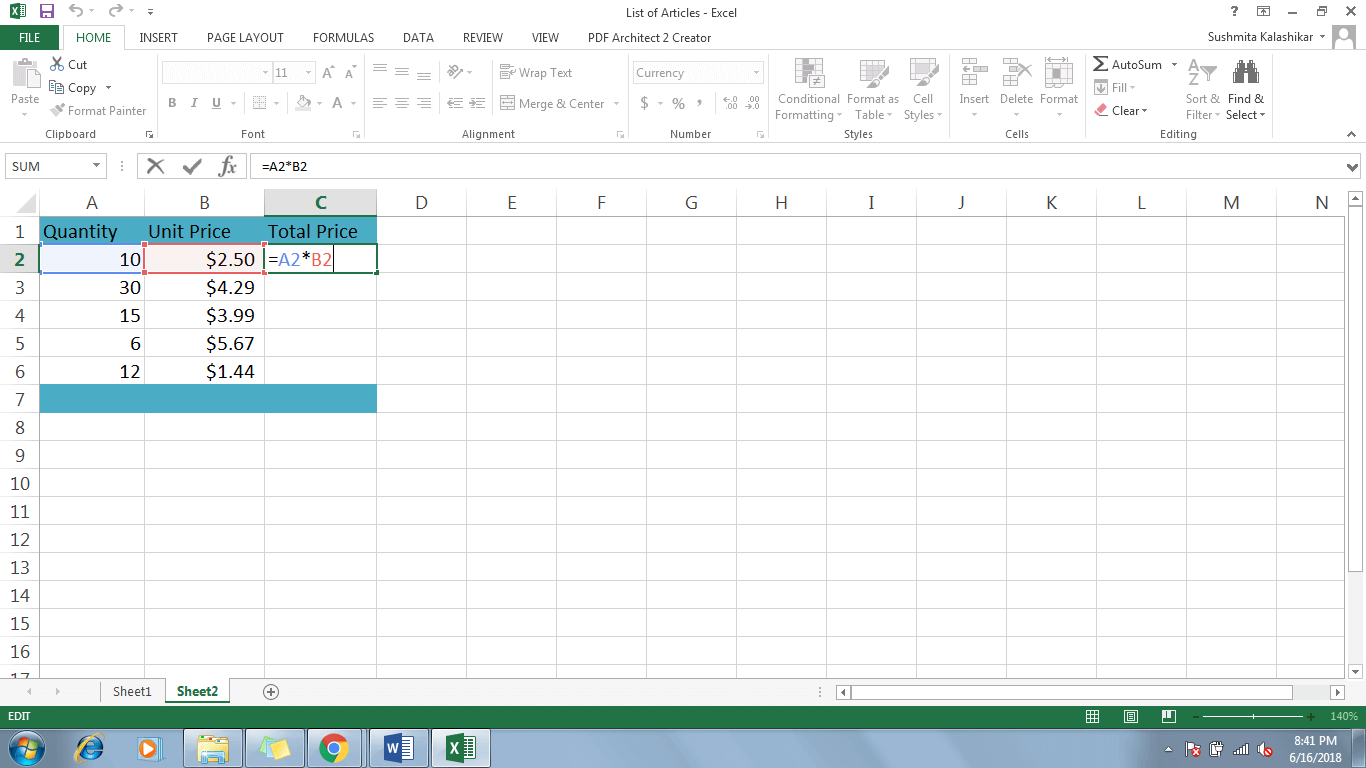
- Next, click and drag the fill handle (the small square at the bottom-right corner of the selected cell) over the cells where you want to copy the same formula, without releasing the mouse.
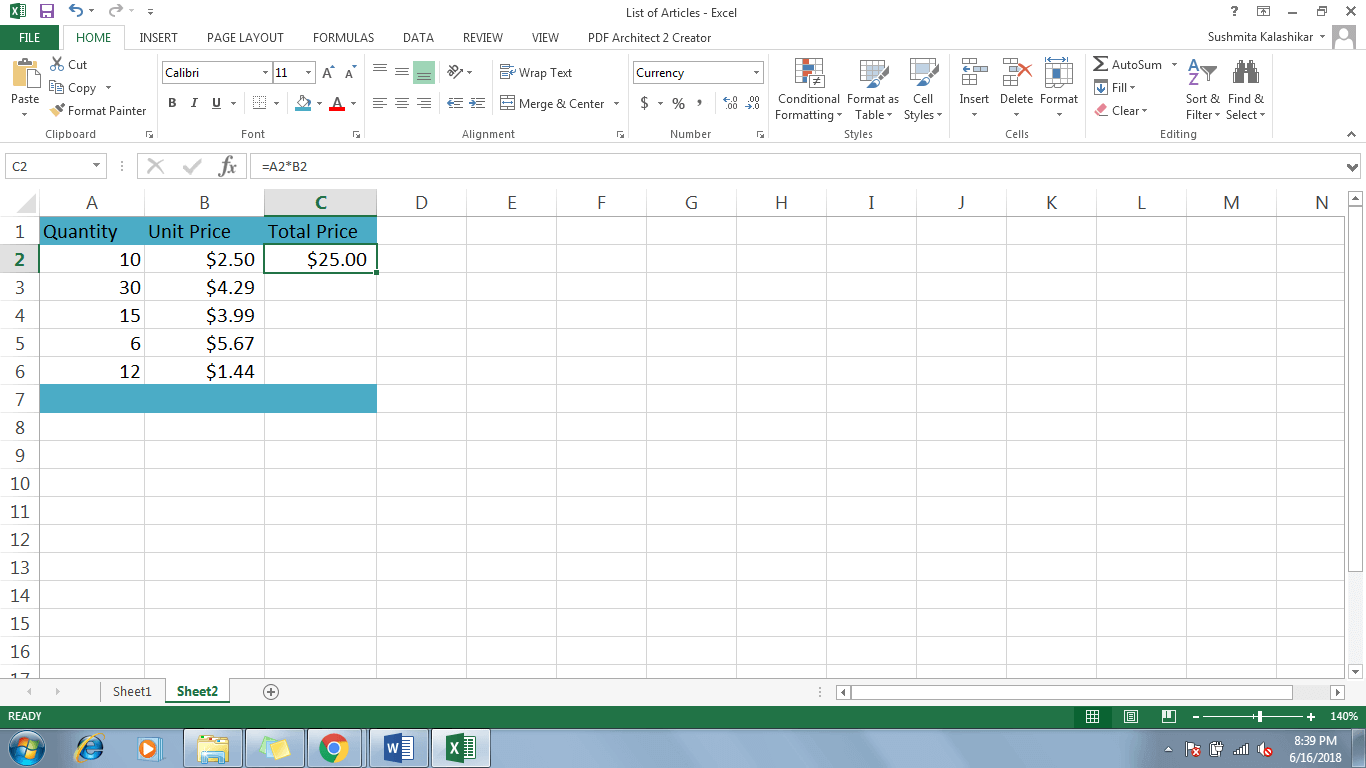
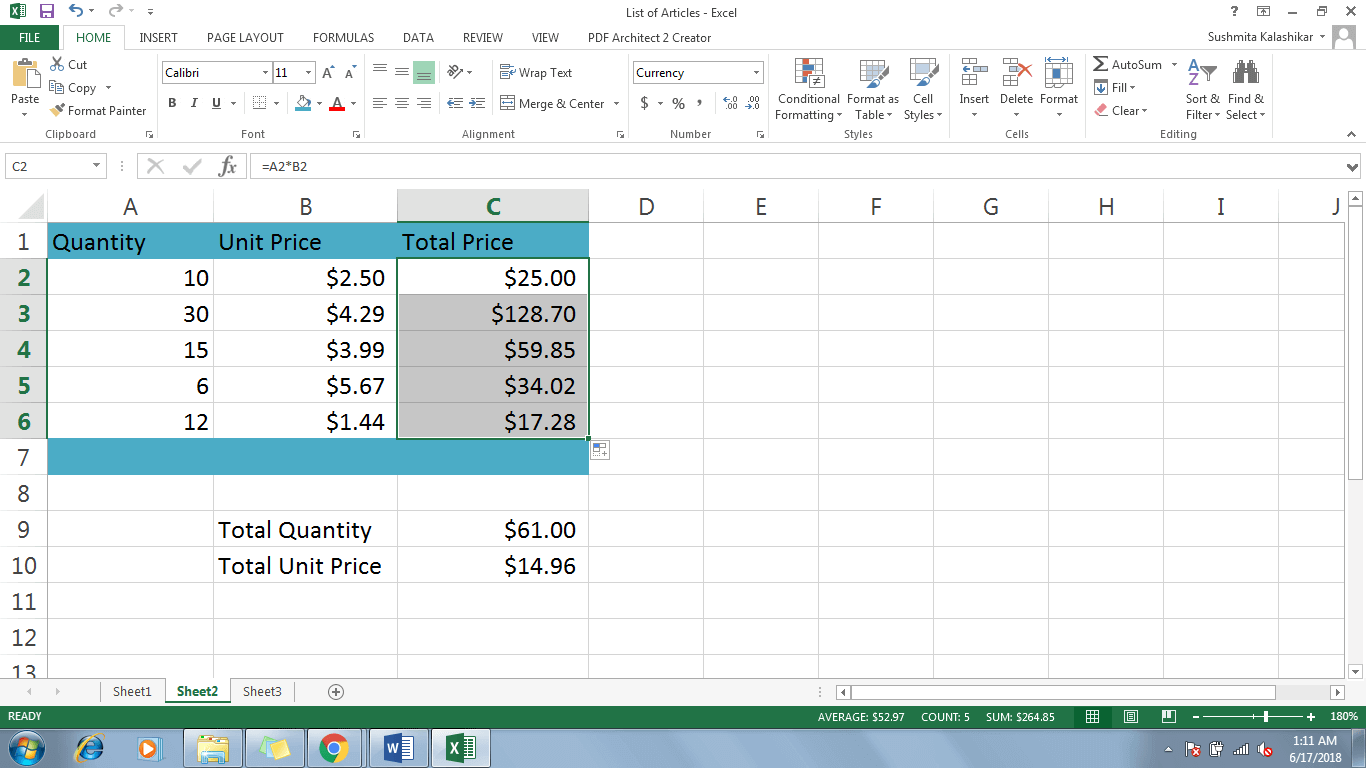
- Once you release the mouse, the same formula will be copied across all the selected cells as follows:
How To Edit or Modify A Formula?
We have already seen how changing values in cell references can automatically recalculate the formula and update the cell holding the result. However, sometimes you may feel the need to modify the formula itself, in case you have selected an incorrect cell address while creating the equation.
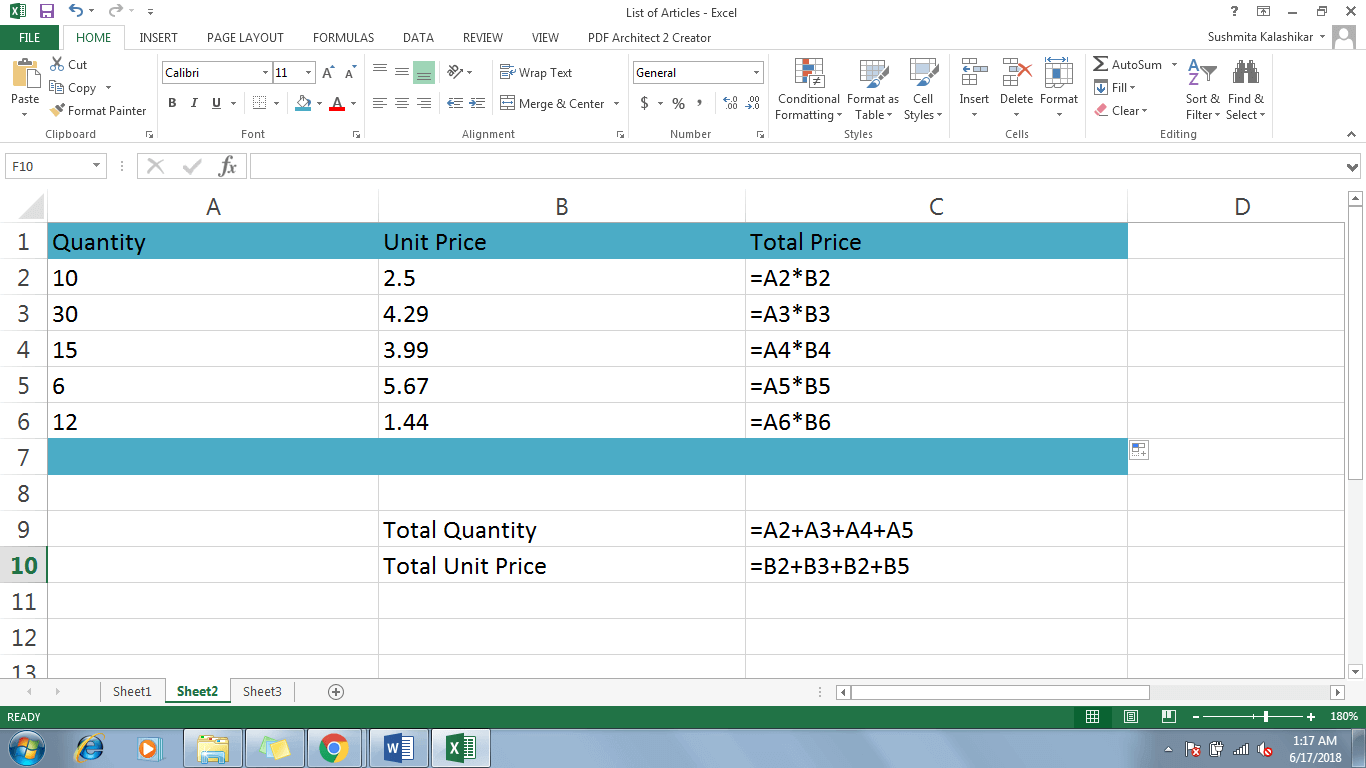
- Select the cell that contains the equation that you wish to edit. In this example, consider changing the formula in reference cell C9.
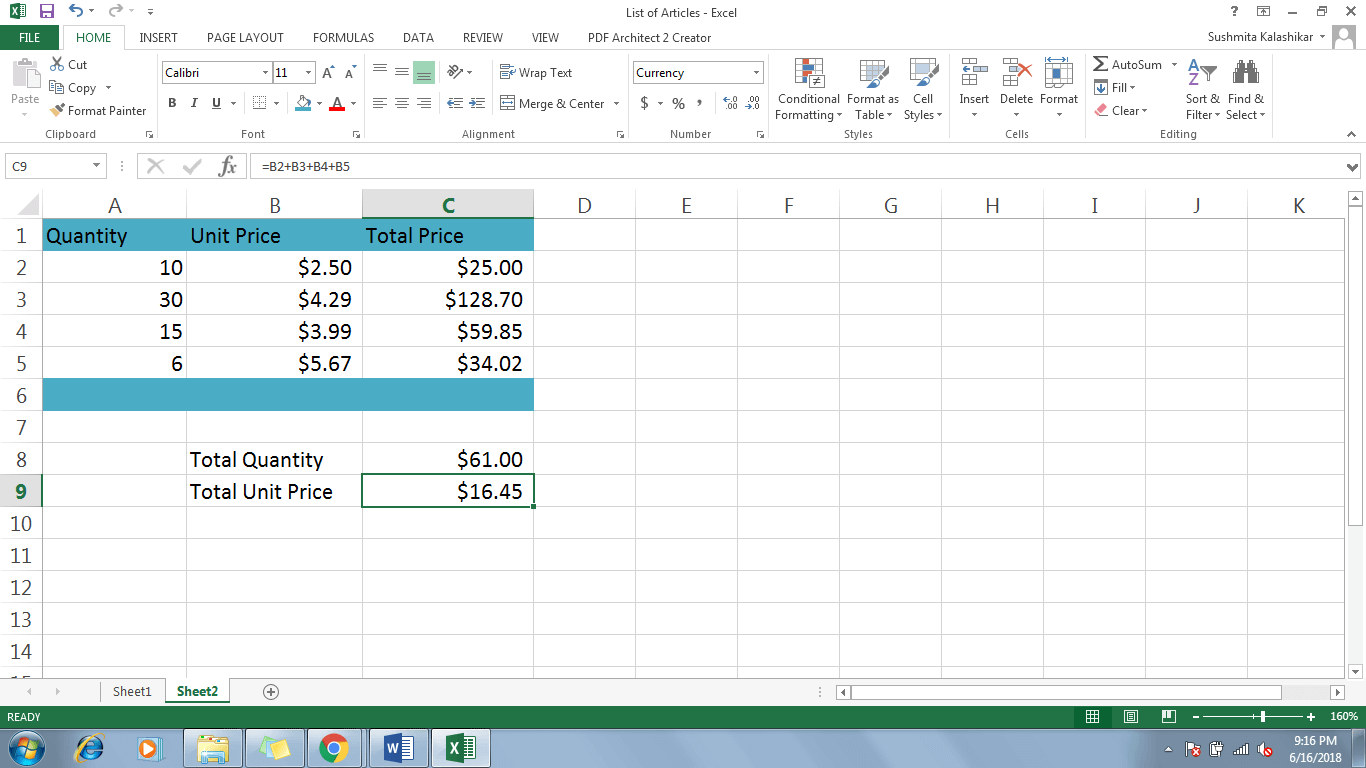
- Just click the formula bar to view and edit the formula. A colored border corresponding to the colours in the formula bar will automatically appear around the referenced cells.
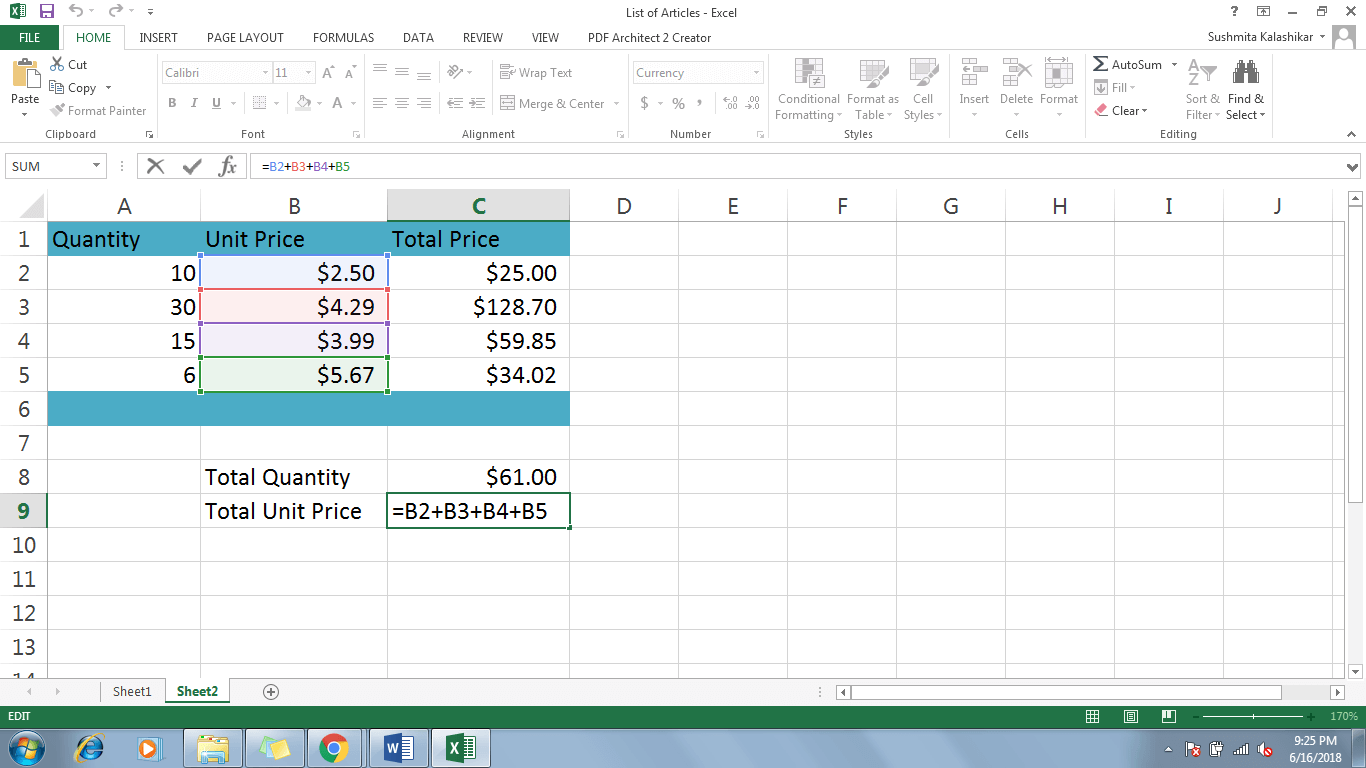
- In this example, we will change the third value, reference cell B4 to B2 in the formula. You can see the automatic removal of the colored border from reference cell B4.
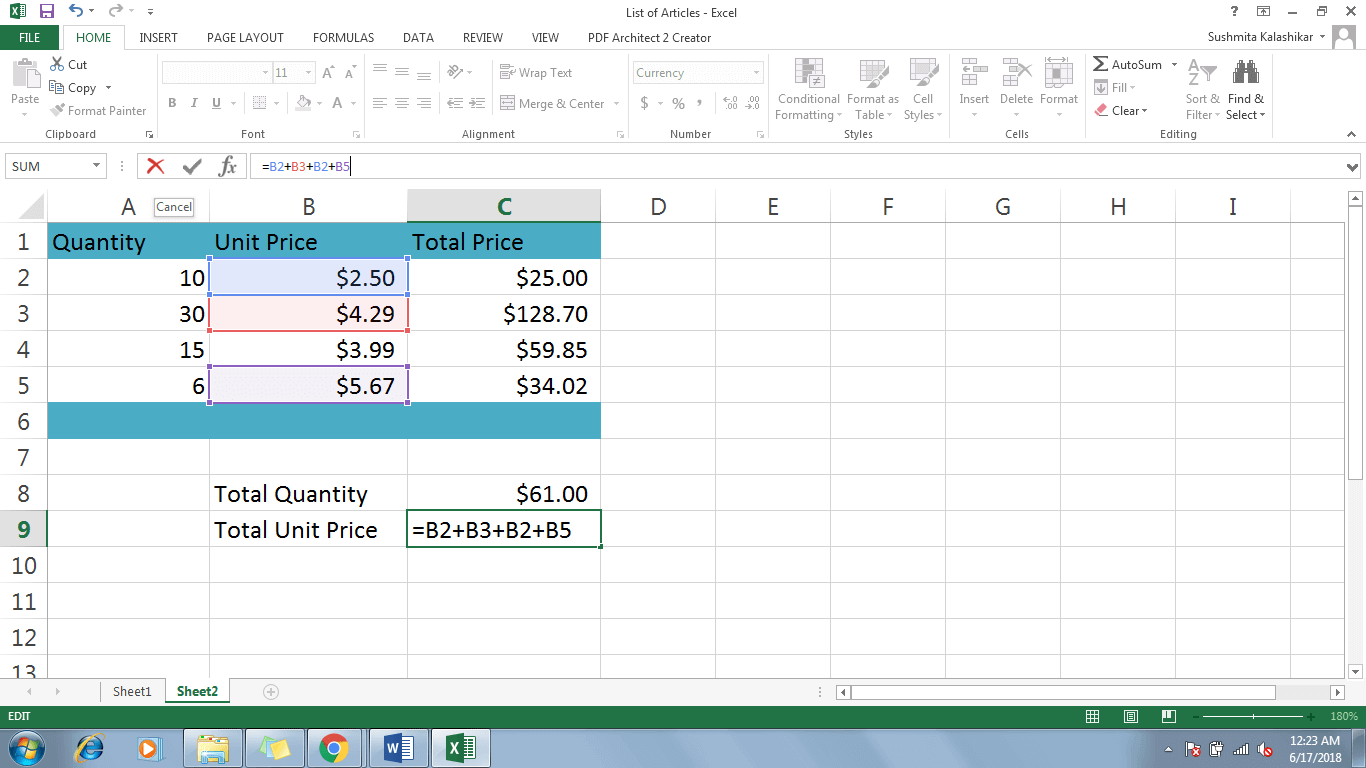
- Alternatively, to view and edit the formula directly within the cell (C9), double-click the cell.
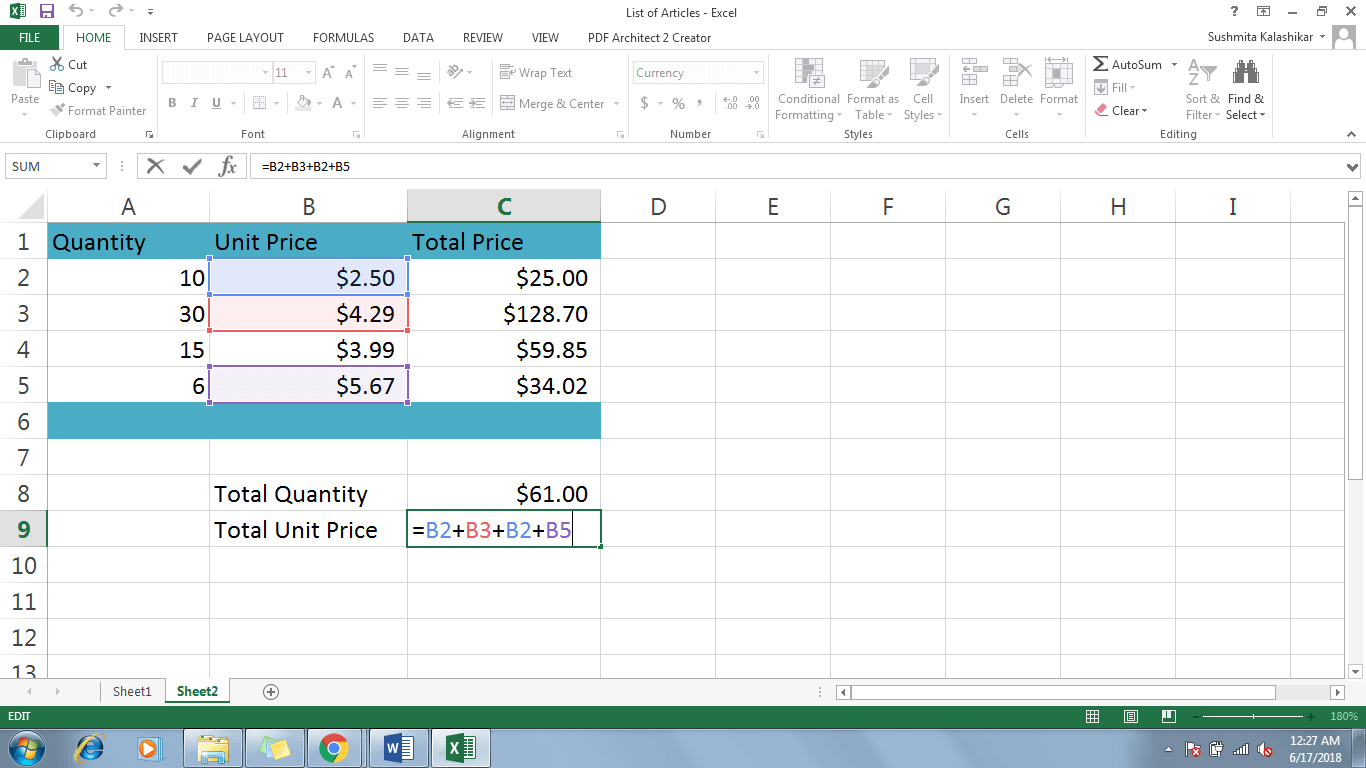
- Once you have modified the formula, press Enter to recalculate the equation and display the new result in the reference cell C9.
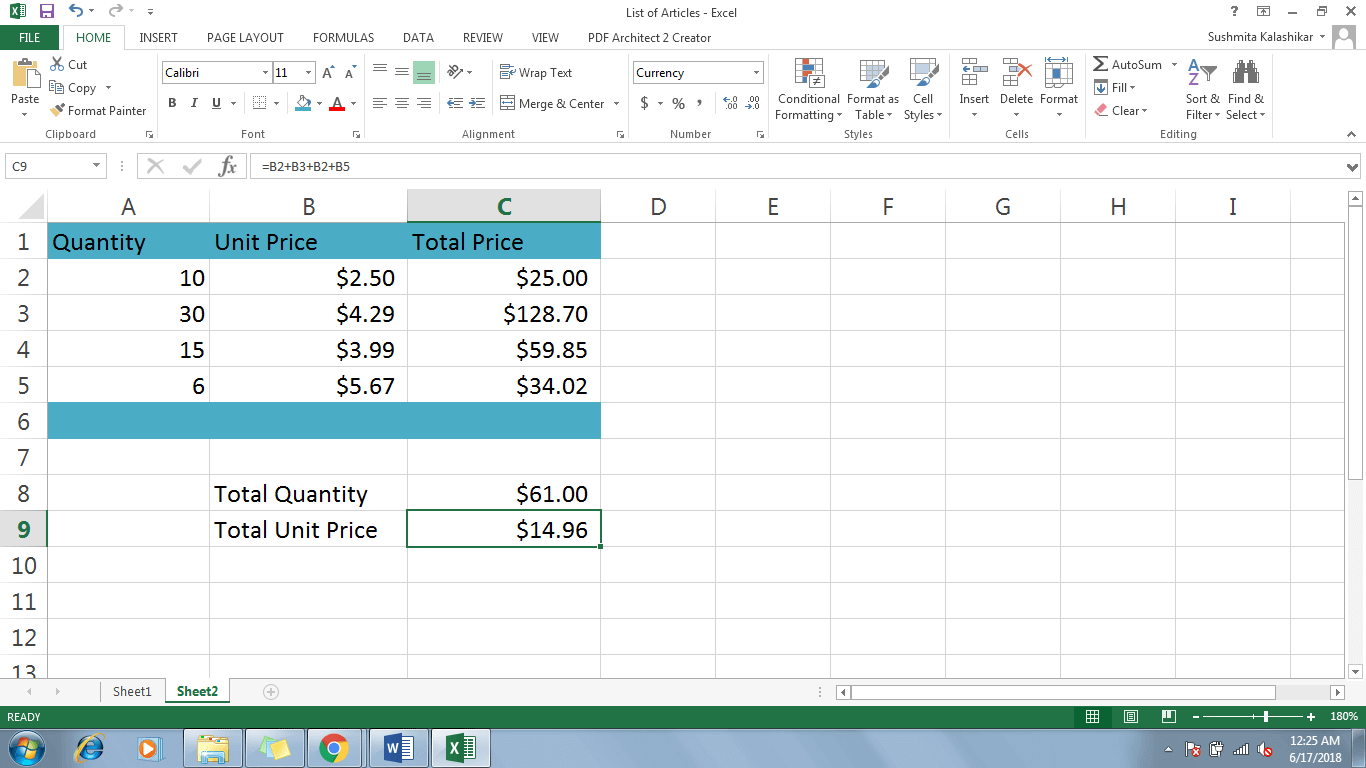
Thus, creating and modifying formulas in Excel can be child’s play, once you have thoroughly understood the essential tips and tricks around these formulas.
A Few Quick Tricks to Remember
1. In case you accidentally make changes to your formula and are worried about your calculations getting wrong, all you need to do is press the Esc key on your keyboard or click the Cancel command visible in the formula bar.
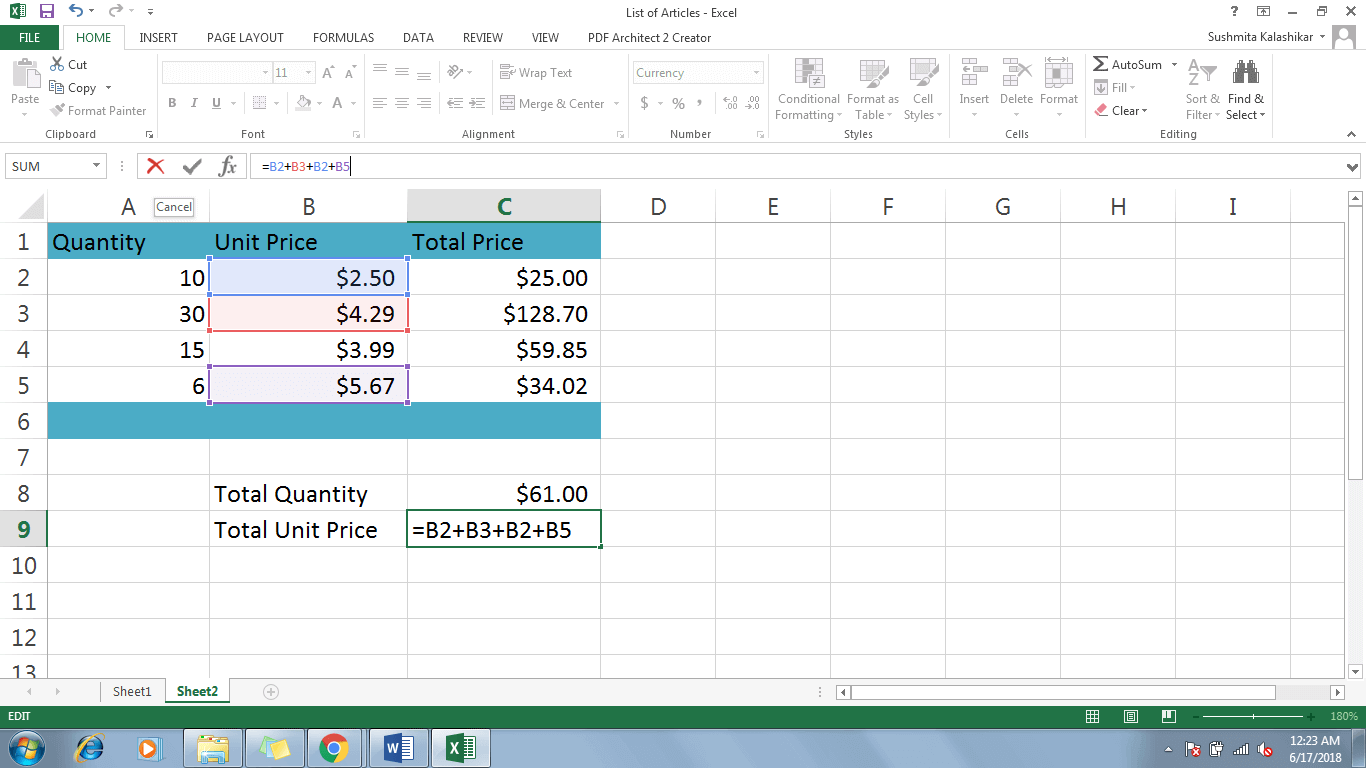
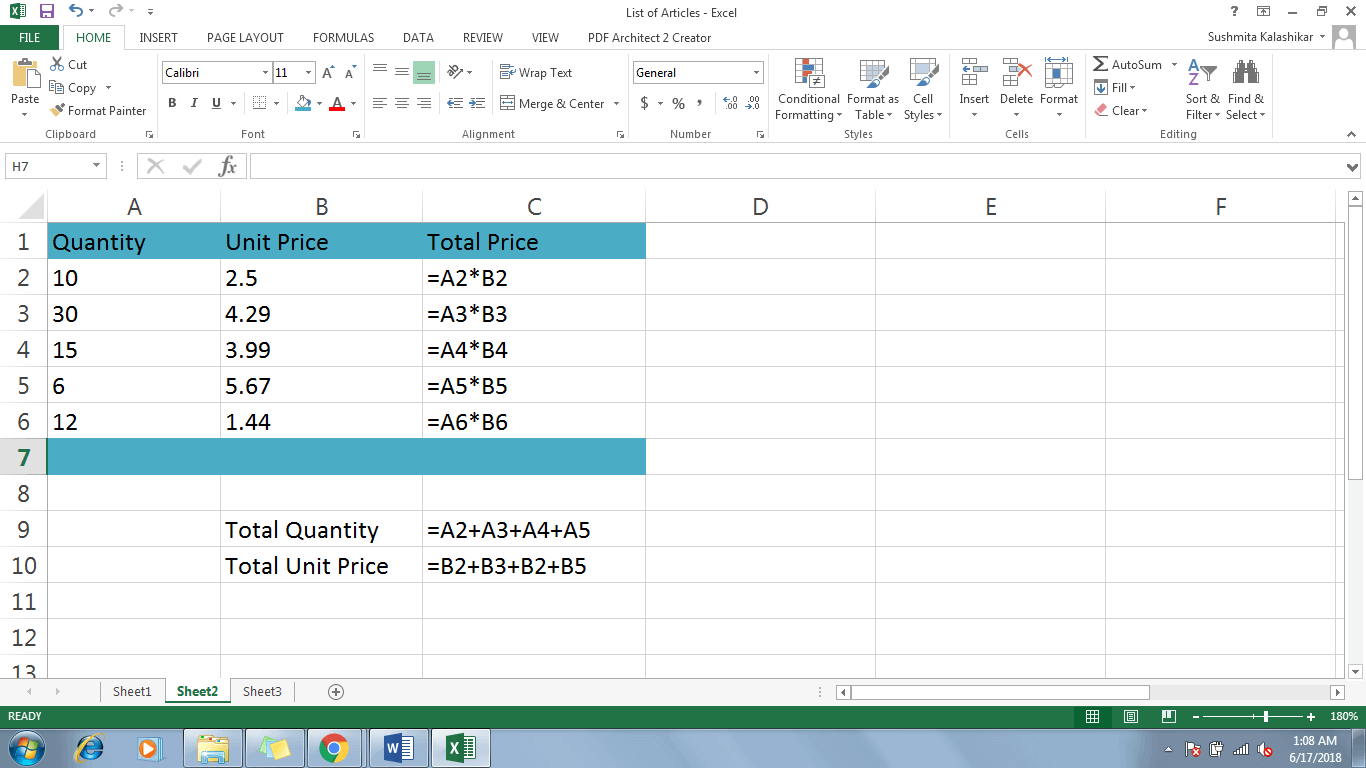
2. If you wish to see all the formulas you have used in your Excel sheet, merely click Ctrl+` (grave accent key). This key is on the top left corner of your keyboard, just below the Esc key. To switch back to normal view, press Ctrl+` again. So, next time you face the challenge of making too many calculations in your Excel 2016, DO NOT panic, as Excel has the power to solve your issues within minutes!!!
To learn more about Excel, you can check our Excel training courses.
