
Download our free Excel shortcuts cheat sheet: a one-page PDF listing the high-value Windows and Mac keyboard shortcuts worth using every day, grouped by task and shown as keys you press in sequence. It deliberately skips the basics everyone already knows, so it stays to a single printable page you can pin by your desk. No sign-up required.
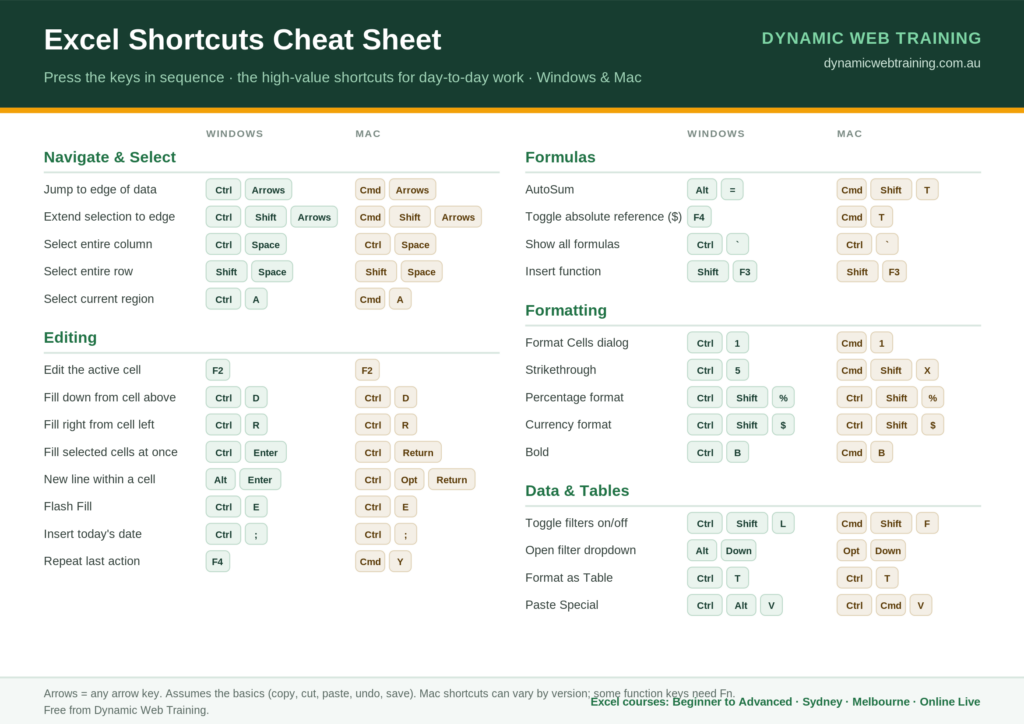
One page · Windows & Mac · print-friendly · free, no email needed
Here’s what’s on the cheat sheet, plus the handful of shortcuts most worth learning first.
What’s on the Excel shortcuts cheat sheet?
The sheet skips the basics everyone already knows (copy, cut, paste, undo, save) and focuses on the shortcuts that actually save time but people tend to underuse. Each one is shown as keys you press in sequence, with a Windows column and a Mac column. It’s grouped into five sections:
- Navigate & select: jump to the edge of your data, select to the edge, select a whole row or column, select the current region.
- Editing: edit a cell, fill down and right, fill several cells at once, add a new line inside a cell, Flash Fill, insert today’s date, repeat the last action.
- Formulas: AutoSum, toggle absolute references, show all formulas, insert a function.
- Formatting: open Format Cells, strikethrough, percentage and currency formats, bold.
- Data & tables: toggle filters, open a filter dropdown, format as a Table, Paste Special.
What are the most useful shortcuts on it?
If you only take a handful away, start with these (Windows shown; the PDF has the Mac keys too):
- Ctrl then Arrow – jump to the edge of your data instantly.
- Ctrl then Shift then Arrow – select from the current cell to the edge.
- Alt then = – AutoSum a column in one move.
- Ctrl then 1 – open the Format Cells dialog (the single most useful formatting shortcut).
- Ctrl then D – fill the selected cell down from the one above.
- F4 – toggle a formula reference to absolute ($A$1), or repeat your last action.
Do the shortcuts work on a Mac?
Yes, the cheat sheet has a dedicated Mac column. On a Mac you generally use Command (Cmd) where Windows uses Ctrl, and there are a few genuine differences, for example AutoSum is Cmd then Shift then T, and strikethrough is Cmd then Shift then X. Mac shortcuts can vary slightly by Excel version, and on laptops some function keys need the Fn key; the sheet notes this.
How do you use the cheat sheet?
Print it single-sided and keep it next to your keyboard, or save the PDF to your desktop. Don’t try to learn all of them at once, pick five you’d use most this week and use them deliberately until they’re automatic, then add a few more. Within a couple of weeks the keyboard becomes faster than the mouse for most tasks.
Where can you learn Excel properly?
A cheat sheet builds speed; structured training builds real capability. For the full context behind these shortcuts, read our Complete Guide to Microsoft Excel and our 30 Excel Shortcuts That Save Hours article. To get properly fast with a Microsoft Certified Trainer, our Excel courses run from Beginner to Advanced in Sydney, Melbourne and Online Live across Australia.
Frequently asked questions
Yes. It’s a free, one-page PDF you can download and print with no sign-up required.
Yes. Every shortcut is listed with its Windows keys and its Mac keys side by side, so it works whichever you use. A few Mac shortcuts differ, and the sheet flags the main ones.
It leaves out the basics almost everyone already knows so it can focus on the higher-value shortcuts people tend not to have internalised. That keeps it to one pinnable page.
Yes, please do. It’s designed to be printed and shared. If your team wants hands-on training, we run group and on-site Excel courses across Australia.
