
To add page numbers in Word, go to the Insert tab, click Page Number in the Header & Footer group, choose a position (Top of Page, Bottom of Page or Page Margins) and click a style. Word numbers every page automatically and updates the numbers as you add or remove pages. To leave the first page unnumbered, tick Different First Page on the Header & Footer tab. To change the style (such as i, ii, iii) or the starting number, use Page Number > Format Page Numbers.
Page numbers make long documents easier to read, print and discuss (“see page 12”). Adding them takes a few clicks, but starting the numbering on page 2 or 3, or fixing numbers that suddenly restart, trips up a lot of people. This guide covers both the quick method and the section-based tricks that give you full control.
How do you add page numbers in Word?
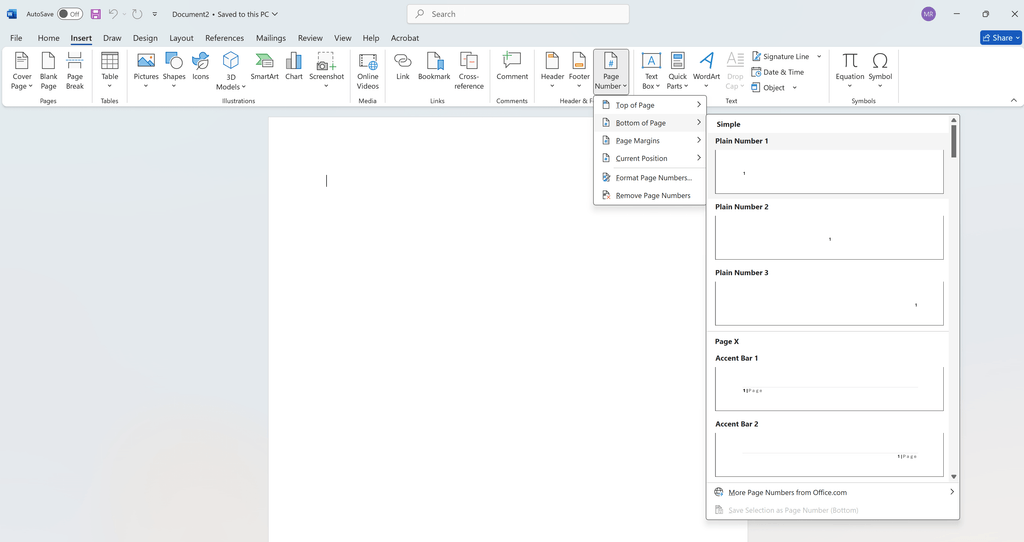
- Go to the Insert tab.
- In the Header & Footer group, click Page Number.
- Choose a position: Top of Page, Bottom of Page, Page Margins or Current Position.
- Click a style from the gallery (for example Plain Number 2 for a centred number).
- Click Close Header and Footer, or double-click anywhere in the body of the document.
The number is a field, so it updates automatically on every page. Do not type page numbers by hand; they will not change when your document does.
On a Mac, use Insert > Page Number in the same way. Word for the web also has an Insert > Page Numbers option with fewer choices; for section-based numbering, open the document in the desktop app.
How do you change the page number format or starting number?
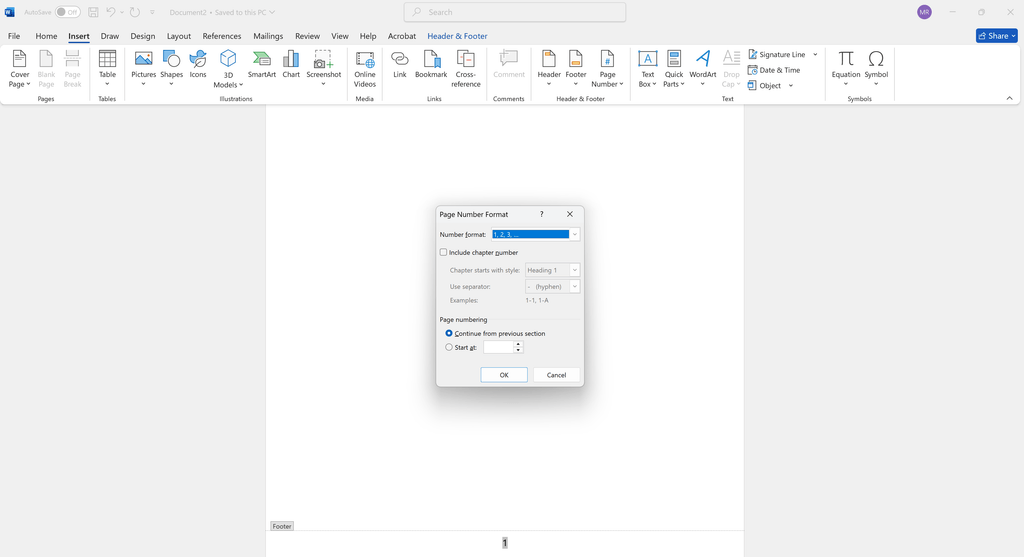
Go to Insert > Page Number > Format Page Numbers. In the dialog box you can:
- Change the number format to 1, 2, 3 or i, ii, iii or A, B, C (Roman numerals are common for front matter such as a contents page).
- Set Start at to begin from any number, for example 0 or 5.
- Choose Continue from previous section so numbering runs on through the whole document.
How do you start page numbers on page 2 in Word?
This is the classic “no number on the cover page” setup:
- Double-click the header or footer to open it.
- On the Header & Footer tab, tick Different First Page in the Options group. The number disappears from page 1.
- If you want page 2 to show 1 rather than 2, go to Insert > Page Number > Format Page Numbers and set Start at to 0.
How do you start page numbering on a later page in Word?
To start numbering on page 3 or later (for example after a cover page and a contents page), split the document into sections:
- Click at the very start of the page where numbering should begin.
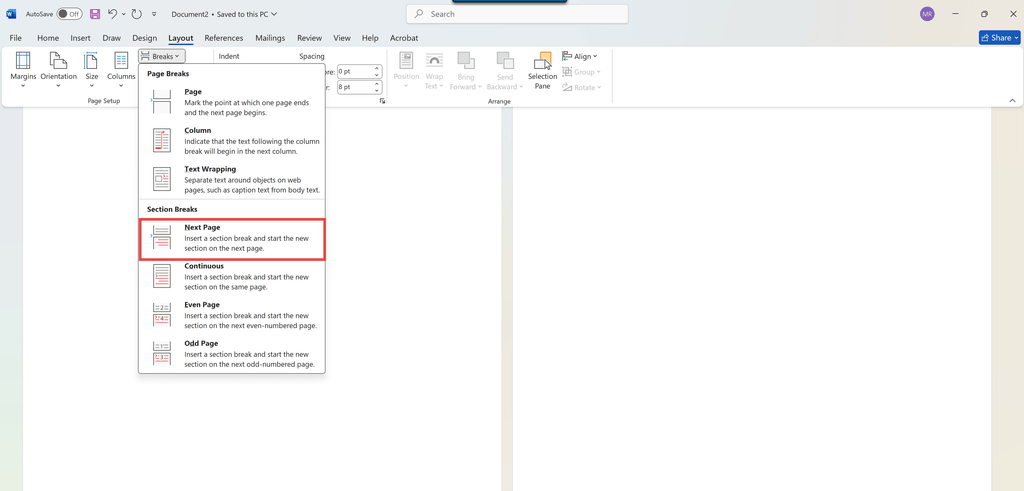
- Go to Layout > Breaks > Next Page (under Section Breaks). If a manual page break already ends the previous page, delete it first so you do not get a blank page.
- Double-click the footer on the first numbered page.
- On the Header & Footer tab, click Link to Previous to turn it off. (Turn it off for the header too if your numbers sit at the top.)
- Go to Insert > Page Number > Format Page Numbers, choose Start at 1 and click OK.
- Delete any page numbers from the footer of the earlier section.
How do you add “Page X of Y” in Word?
Go to Insert > Page Number > Top of Page (or Bottom of Page), scroll down to the Page X of Y section of the gallery and choose a style such as Bold Numbers 2. Word inserts both the current page and the total page count, and keeps both up to date.
How do you remove page numbers in Word?
Go to Insert > Page Number > Remove Page Numbers. If your document has several sections with unlinked footers, repeat this in each section, or open the footer and delete the number manually.
Why are my page numbers wrong or restarting in Word?
- Numbers restart at 1 partway through. A section break is set to Start at 1. Click in that section, open Format Page Numbers and choose Continue from previous section.
- Every page shows the same number. The numbers were typed by hand rather than inserted as a field. Delete them and use Insert > Page Number.
- You see {PAGE} instead of a number. Field codes are showing. Press Alt + F9 to switch back.
- Removing a number from one page removes it everywhere. The sections are still linked. Turn off Link to Previous in the section you want to change.
Practice on your own document
Try it on a report or proposal you are working on: add numbers, hide the one on the cover, and use a section break to restart the numbering after the contents page. Once you have done it once, long documents become much easier to manage. For another time-saver, see our guide to mail merge in Word and Outlook.
Headers and footers, section breaks and long-document formatting are covered in our Microsoft Word training courses, in-class in Sydney and Melbourne or Online Live across Australia, from Beginner through to Advanced.
Frequently asked questions
Go to Insert > Page Number, choose Top of Page, Bottom of Page or Page Margins, and click a style. Word numbers every page automatically and updates the numbers as the document changes.
Double-click the header or footer and tick Different First Page on the Header & Footer tab. To make page 2 show the number 1, go to Insert > Page Number > Format Page Numbers and set Start at to 0.
Insert a Next Page section break (Layout > Breaks > Next Page) before the page where numbering should start, turn off Link to Previous in that section’s footer, then use Format Page Numbers to set Start at 1. Delete the numbers in the earlier section.
Go to Insert > Page Number > Top of Page or Bottom of Page, scroll to the Page X of Y section and choose a style. Word shows the current page and the total number of pages and keeps both updated.
Go to Insert > Page Number > Remove Page Numbers. If the document has several unlinked sections, repeat this in each section or delete the numbers from each footer.
A section break in the document is set to start numbering again at 1. Click in the section where the numbers restart, go to Insert > Page Number > Format Page Numbers and choose Continue from previous section.
