
To lock cells in Excel, select the whole sheet, press Ctrl + 1, and on the Protection tab untick Locked. Then select only the cells you want to lock, press Ctrl + 1 again and tick Locked. Finally, go to Review > Protect Sheet, choose what users can still do, add a password if you want one, and click OK. Locked cells can no longer be edited until you go to Review > Unprotect Sheet.
Locking cells stops people (including you) from accidentally typing over formulas, headings or reference data. It is one of the simplest ways to make a shared spreadsheet safer. This guide shows you how to lock specific cells, protect only your formulas, unlock cells again, and how locking a cell reference in a formula (with $) is a different thing altogether.

What does locking cells in Excel do?
Every cell in a new worksheet already has the Locked setting turned on, but it does nothing until the sheet is protected. Locking is a two-part process: first you decide which cells are locked or unlocked, then you switch protection on with Protect Sheet. Once the sheet is protected, locked cells cannot be edited, and unlocked cells stay open for data entry.
How do you lock specific cells in Excel?
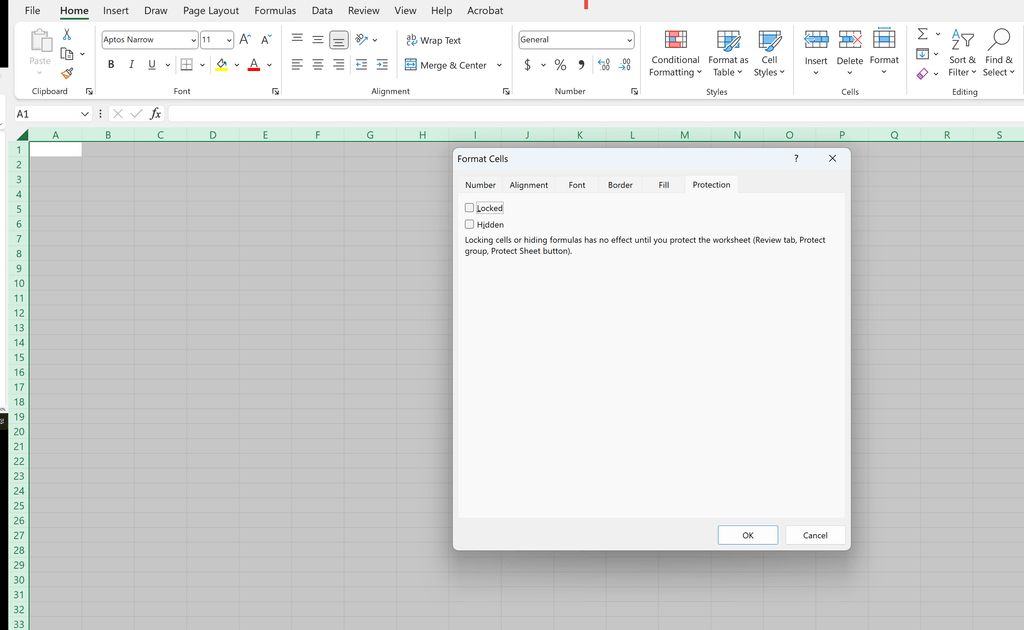
Because every cell starts out locked, you unlock the whole sheet first, then lock only the cells you want to protect:
- Click the Select All triangle (top left of the grid) or press Ctrl + A.
- Press Ctrl + 1 to open Format Cells and go to the Protection tab.
- Untick Locked and click OK. Every cell is now unlocked.
- Select the cells you want to lock (for example your formulas and headings).
- Press Ctrl + 1, tick Locked on the Protection tab and click OK.
- Protect the sheet (next section).
How do you protect the sheet so locked cells cannot be changed?
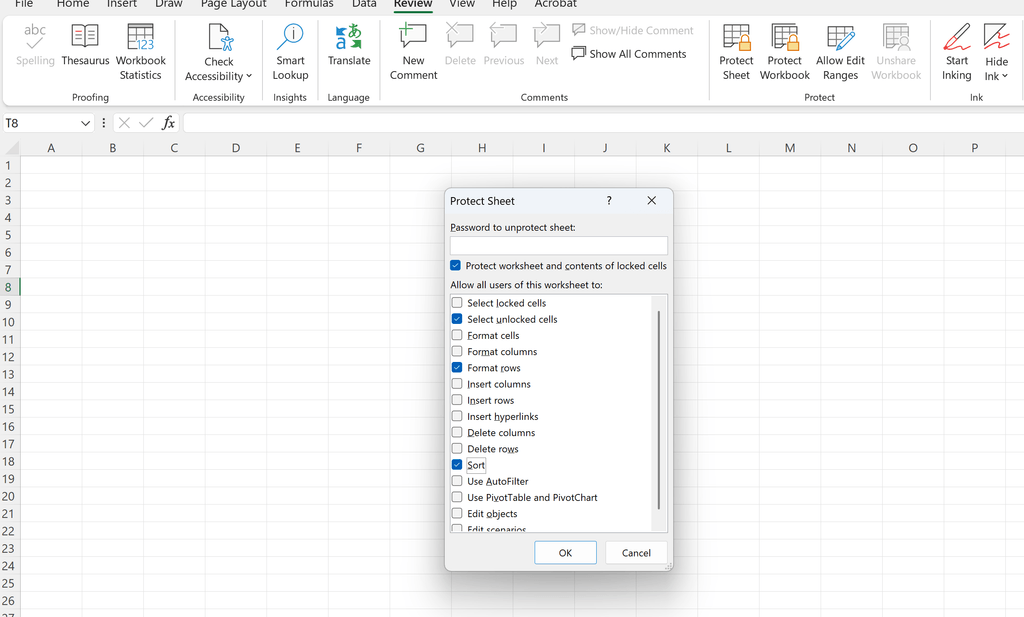
- Go to the Review tab and click Protect Sheet.
- Under Allow all users of this worksheet to, choose what people can still do. Leave Select locked cells and Select unlocked cells ticked so they can still click around; tick extras such as Format columns or Sort only if needed.
- Optionally type a password, then click OK (and confirm the password).
Now try typing in a locked cell: Excel shows a message saying the cell is protected. Unlocked cells still accept data as normal.
A word of caution on passwords: Excel cannot recover a lost sheet password, so store it somewhere safe. Sheet protection is also designed to prevent accidental changes, not to secure confidential data.
How do you lock only the formulas in Excel?
Instead of selecting formula cells one by one, let Excel find them for you:
- Unlock the whole sheet first (Ctrl + A, Ctrl + 1, Protection, untick Locked).
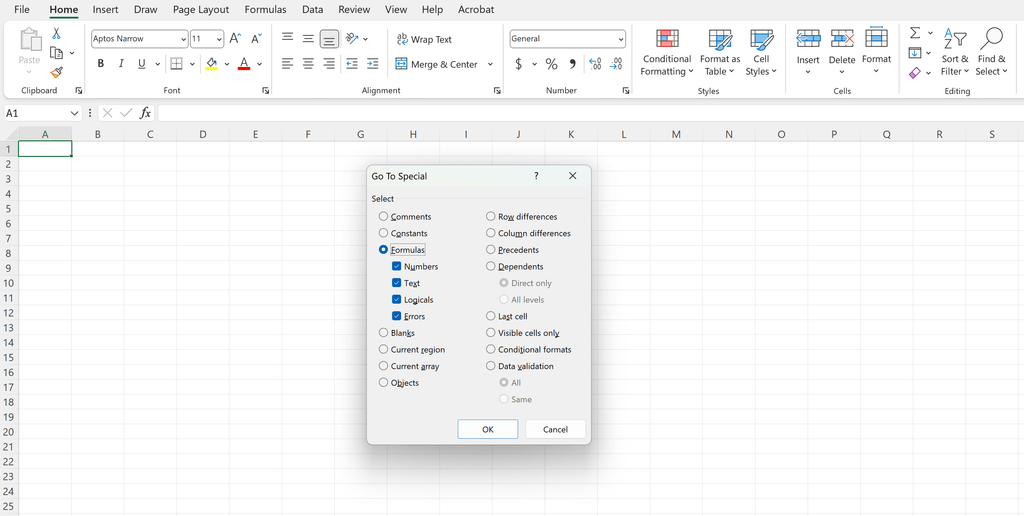
- Go to Home > Find & Select > Go To Special, choose Formulas and click OK. Excel selects every formula on the sheet.
- Press Ctrl + 1, tick Locked (and Hidden if you also want to hide the formulas from the formula bar) and click OK.
- Go to Review > Protect Sheet and click OK.
How do you unlock cells or unprotect a sheet in Excel?
Go to Review > Unprotect Sheet and enter the password if one was set. All cells can be edited again. To permanently open up particular cells, select them, press Ctrl + 1, untick Locked on the Protection tab, then protect the sheet again.
How do you lock a cell reference in an Excel formula?
This is a different meaning of “lock”. When you copy a formula, Excel adjusts cell references automatically. To stop a reference changing, make it absolute with dollar signs: $A$1 locks both the column and the row. Click the reference in the formula bar and press F4 to cycle through $A$1, A$1 (row only), $A1 (column only) and A1.
For example, =B2*$E$1 multiplies each value in column B by the rate in E1. When you fill it down, B2 becomes B3, B4 and so on, but $E$1 stays fixed.
What is the difference between locking cells and protecting a workbook?
- Locking cells + Protect Sheet stops changes to cell contents on one worksheet.
- Protect Workbook (Review tab) protects the workbook’s structure, so people cannot add, delete, rename, move or hide sheets. It does not stop cell edits.
- A file password (File > Info > Protect Workbook > Encrypt with Password) stops people opening the file at all.
Use them together if you need to. For a shared form, the usual combination is unlocked input cells, locked formulas, and a protected sheet. Pair it with a drop-down list in Excel so people choose valid options instead of typing.
Practice on your own spreadsheet
Take a budget or tracker you share with others, unlock the input cells, lock everything else and protect the sheet. It takes two minutes and saves hours of fixing overwritten formulas. While you are tidying it up, freeze the header row too.
Cell protection, absolute references and building reliable shared workbooks are covered in our instructor-led Excel training courses, in-class in Sydney and Melbourne or Online Live across Australia. For the bigger picture, see our Complete Guide to Microsoft Excel.
Frequently asked questions
Select the cells, press Ctrl + 1, and make sure Locked is ticked on the Protection tab. Then go to Review > Protect Sheet and click OK. Locking only takes effect once the sheet is protected.
Select the whole sheet, press Ctrl + 1 and untick Locked on the Protection tab. Then select just the cells you want to protect, tick Locked again, and go to Review > Protect Sheet.
Unlock the whole sheet, then use Home > Find & Select > Go To Special > Formulas to select every formula. Press Ctrl + 1, tick Locked (and Hidden to hide them), then protect the sheet with Review > Protect Sheet.
Go to Review > Unprotect Sheet and enter the password if there is one. To keep certain cells editable after you protect the sheet again, select them, press Ctrl + 1 and untick Locked on the Protection tab.
Use an absolute reference with dollar signs, such as $A$1, so the reference does not change when you copy the formula. Click the reference and press F4 to add the dollar signs automatically.
Protect Sheet stops changes to locked cells on a worksheet. Protect Workbook protects the structure, so sheets cannot be added, deleted, renamed or moved, but it does not stop people editing cells.
