
A macro in Excel is a recorded series of actions, such as formatting a report or cleaning imported data, that Excel saves as VBA code and can replay whenever you need it. To create one, go to View > Macros > Record Macro, give it a name, carry out the steps once, then click Stop Recording. Run it again with Alt + F8, a keyboard shortcut or a button, and save the file as an Excel Macro-Enabled Workbook (.xlsm) so the macro is kept.
If you do the same Excel task every week, a macro can do it for you in seconds. You do not need to know any code to start: Excel’s macro recorder watches what you do and writes the code for you. This guide explains what macros are, how to record and run one, how to save it, and how to enable macros safely when Excel blocks them.
What is a macro in Excel?
A macro is a small program that repeats a set of steps for you. When you record a macro, Excel notes every action you take (selecting cells, typing, formatting, sorting, inserting columns) and stores it as code in VBA (Visual Basic for Applications), the programming language built into Microsoft Office. Running the macro replays those steps in the same order, usually far faster than you could do them by hand.
Common uses include:
- Formatting reports the same way every time (fonts, column widths, number formats, headers)
- Cleaning imported data, such as deleting blank rows, splitting columns or removing extra spaces
- Repeating multi-step tasks, such as adding a total row, applying a filter and printing
- Building the same summary from a new data export each week or month
How do you record a macro in Excel?
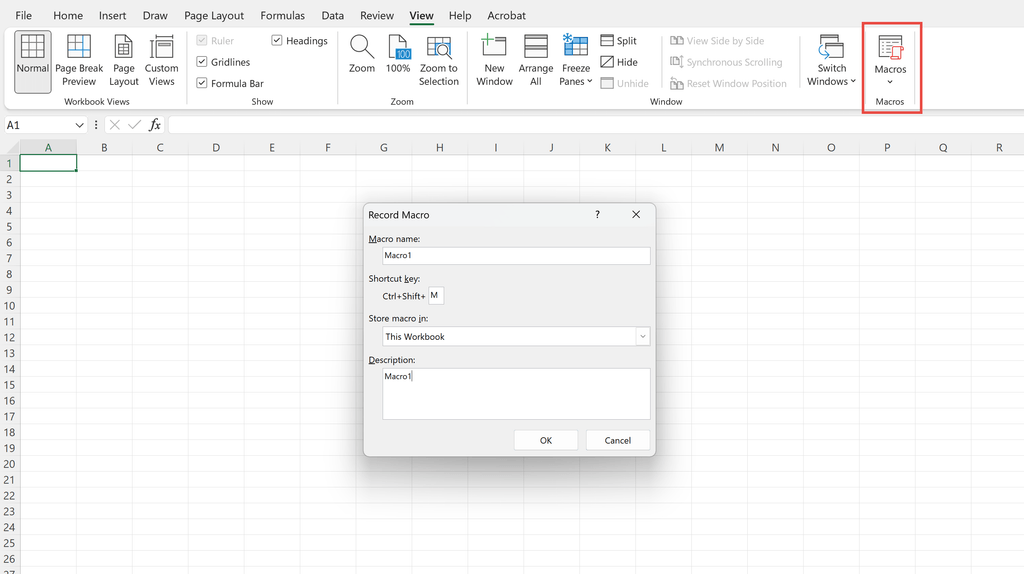
- Go to the View tab, click the arrow under Macros and choose Record Macro. (If the Developer tab is showing, you can also use Developer > Record Macro.)
- Type a Macro name. It must start with a letter and cannot contain spaces, so use something like FormatSalesReport.
- Optionally add a Shortcut key. Type a capital letter so the shortcut becomes Ctrl + Shift + that letter, which avoids replacing built-in shortcuts such as Ctrl + C.
- Under Store macro in, choose This Workbook, or Personal Macro Workbook if you want the macro available in every workbook you open.
- Add a short description, then click OK. Excel is now recording.
- Carry out the task exactly as you want it repeated.
- Go to View > Macros > Stop Recording.
By default, the recorder uses fixed cell addresses, so the macro always works on the same cells. If you want it to work from whichever cell is selected, turn on View > Macros > Use Relative References before you start recording.
How do you run a macro in Excel?
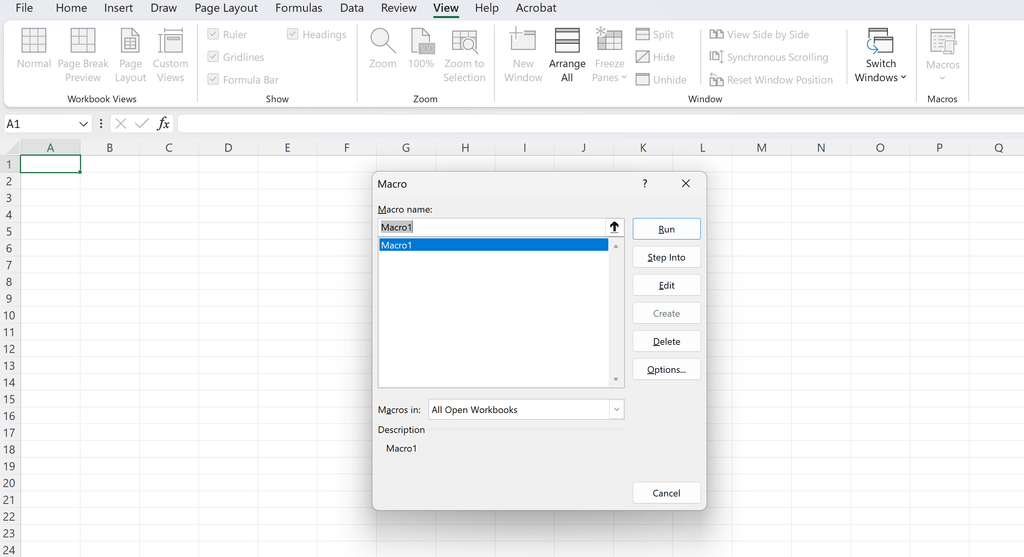
- Macro dialog box: press Alt + F8 (or View > Macros > View Macros), select the macro and click Run.
- Keyboard shortcut: press the shortcut you set when recording, such as Ctrl + Shift + R.
- Button: insert a shape (Insert > Shapes), right-click it, choose Assign Macro, pick the macro and click OK. Clicking the shape now runs the macro.
- Quick Access Toolbar: go to File > Options > Quick Access Toolbar, choose Macros from the list and add yours.
One important difference from normal editing: you cannot undo a macro with Ctrl + Z. Save your workbook before running a macro for the first time, or test it on a copy.
How do you save a workbook with macros?
A standard .xlsx workbook cannot store macros. If you save a file with macros as .xlsx, Excel warns you and the macros are removed. Instead:
- Go to File > Save As.
- In the file type list, choose Excel Macro-Enabled Workbook (*.xlsm).
- Click Save.
Macros stored in the Personal Macro Workbook are saved in a hidden file called PERSONAL.XLSB, which opens in the background whenever Excel starts. Excel asks whether to save it when you close Excel; click Save to keep your macros.
How do you enable macros in Excel?
Excel disables macros by default because macros can carry malicious code. When you open a macro-enabled file, you will usually see one of two messages:
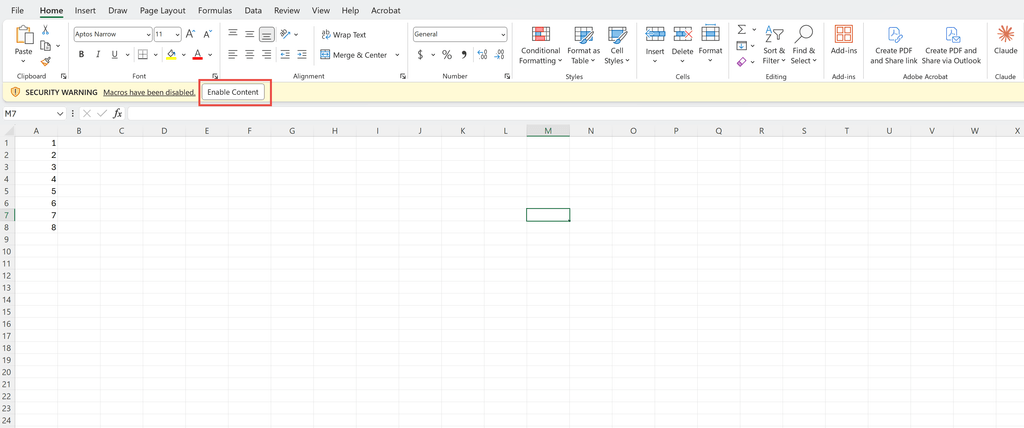
- A yellow Security Warning bar saying macros have been disabled. If you trust the file and where it came from, click Enable Content.
- A red Security Risk bar saying Microsoft has blocked macros because the source of the file is untrusted. This appears for files downloaded from the internet or received by email. If you trust the file, close it, right-click it in File Explorer, choose Properties, tick Unblock on the General tab and click OK. Then open it again and click Enable Content.
You can review the overall setting under File > Options > Trust Center > Trust Center Settings > Macro Settings. The default, Disable VBA macros with notification, is the safest everyday choice because it lets you decide file by file. Avoid Enable VBA macros, which runs any macro without asking. At work, your IT team may control these settings for you.
How do you see or edit the code behind a macro?
Press Alt + F11 to open the Visual Basic Editor, or select the macro in the Macro dialog box (Alt + F8) and click Edit. Recorded macros are stored in a module, and the code reads much like a list of instructions. A macro that bolds and colours a header row might look like this:
Sub FormatHeader()
    Range("A1:F1").Font.Bold = True
    Range("A1:F1").Interior.Color = RGB(31, 56, 100)
    Range("A1:F1").Font.Color = RGB(255, 255, 255)
End SubSmall edits, such as changing a range or a colour, are a good way to start learning VBA. Writing your own code lets you add things the recorder cannot, such as loops, decisions and messages to the user.
What is the difference between a macro and VBA?
A macro is the automated task; VBA is the language the macro is written in. Recording a macro writes the VBA for you, which is ideal for simple, fixed steps. Writing VBA yourself lets you build macros that make decisions, repeat over every row or sheet, and handle data that changes size.
Do macros work in Excel for the web or on a Mac?
Excel for Windows and Excel for Mac can both record and run VBA macros. Excel for the web cannot record, run or edit VBA macros, although you can still open and edit a .xlsm file there. For automation in the browser, Excel for the web uses Office Scripts on the Automate tab instead, where your Microsoft 365 plan includes it.
Practice on your own spreadsheet
Pick a task you repeat every week, such as tidying a data export, and record it as a macro on a copy of the file. Start with a few steps, test it, then build up. If the task involves cleaning data, our guide on how to remove duplicates in Excel covers a step worth recording. Once the macro works, lock the cells other people should not change.
Recording and running macros is covered in our Advanced Excel course, and our Excel VBA course teaches you to write your own code. Both are part of our instructor-led Excel training courses, in-class in Sydney and Melbourne or Online Live across Australia. For the bigger picture, see our Complete Guide to Microsoft Excel.
Frequently asked questions
A macro is a recorded set of actions that Excel stores as VBA code and can replay with one click or shortcut. Macros are used to automate repetitive tasks such as formatting reports or cleaning imported data.
Go to View > Macros > Record Macro, enter a name and click OK. Carry out the steps you want to automate, then go to View > Macros > Stop Recording. Save the file as an Excel Macro-Enabled Workbook (.xlsm).
When you open a file you trust, click Enable Content on the yellow Security Warning bar. If a red bar says the macros are blocked, close the file, right-click it in File Explorer, choose Properties, tick Unblock, then reopen it and enable content.
Excel blocks macros in files downloaded from the internet or received by email because macros can contain malicious code. If you trust the file, unblock it in File Explorer under Properties, or save it to a trusted location.
Macros you record yourself are safe. Macros in files from other people can contain harmful code, so only enable macros in files from sources you trust, and keep the default setting that disables macros with a notification.
A macro is the automated task, and VBA (Visual Basic for Applications) is the programming language it is written in. Recording a macro writes the VBA for you, while writing VBA yourself lets you add loops, decisions and other logic.
