
To choose the right Microsoft training for your team, start with the work, not the software: list the tasks each person needs to do, check their current skill level, and match them to the app and course level that closes the gap. Then choose a format that fits your team (classroom, Online Live or in-house) and a provider that offers live, hands-on teaching, small classes and support after the course. Train the foundations first, especially before Copilot training, so people can judge and fix what AI produces.
Most teams use Microsoft 365 every day, yet many people only know a fraction of what Excel, Word, Outlook and Teams can do. The right training saves hours each week; the wrong training wastes a day for people who already knew the content or leaves others behind. This guide walks you through choosing training that fits your team, step by step.
Why does choosing the right level of training matter?
Putting everyone in the same course is the most common mistake. If the level is too low, experienced staff switch off and see little benefit. If it is too high, newer staff struggle to keep up and stop asking questions. Matching each person to the right level means everyone leaves with skills they will use the next day.
What tasks does your team need Microsoft skills for?
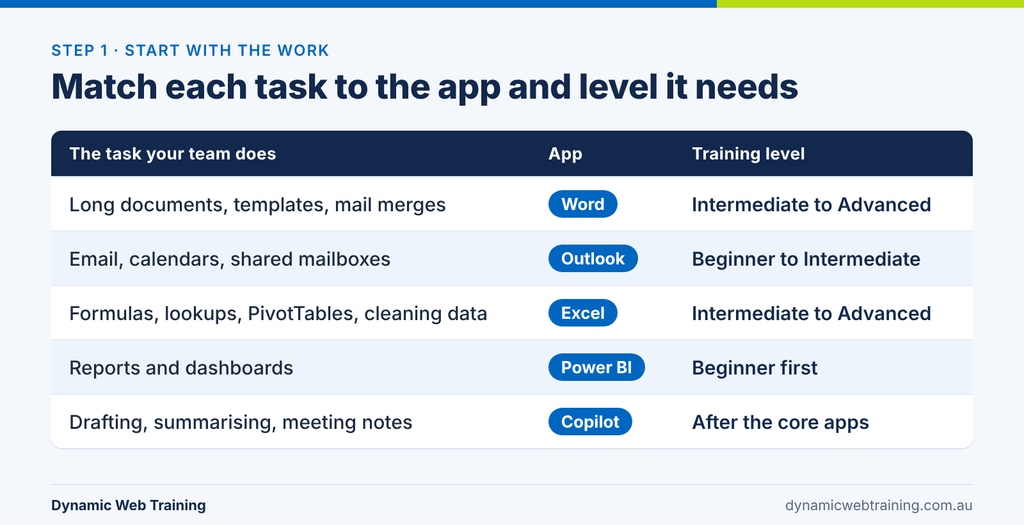
Start with the jobs people do, then work out which skills those jobs need. A few examples:
• Administration and support staff: long documents, templates and mail merges in Word; managing email, calendars and shared mailboxes in Outlook.
• Finance and operations: formulas, PivotTables, lookups and data cleaning in Excel; reporting and dashboards in Power BI.
• Managers and team leads: reporting in Excel, presentations in PowerPoint, meetings and collaboration in Teams, and using Copilot to summarise and draft.
• Project teams: building schedules and tracking progress in Microsoft Project (see our Microsoft Project training), task boards in Planner, and sharing files in SharePoint.
Ask each manager for the three tasks that take their team the longest or cause the most errors. Those tasks are where training pays back fastest.
How do you work out each person’s skill level?
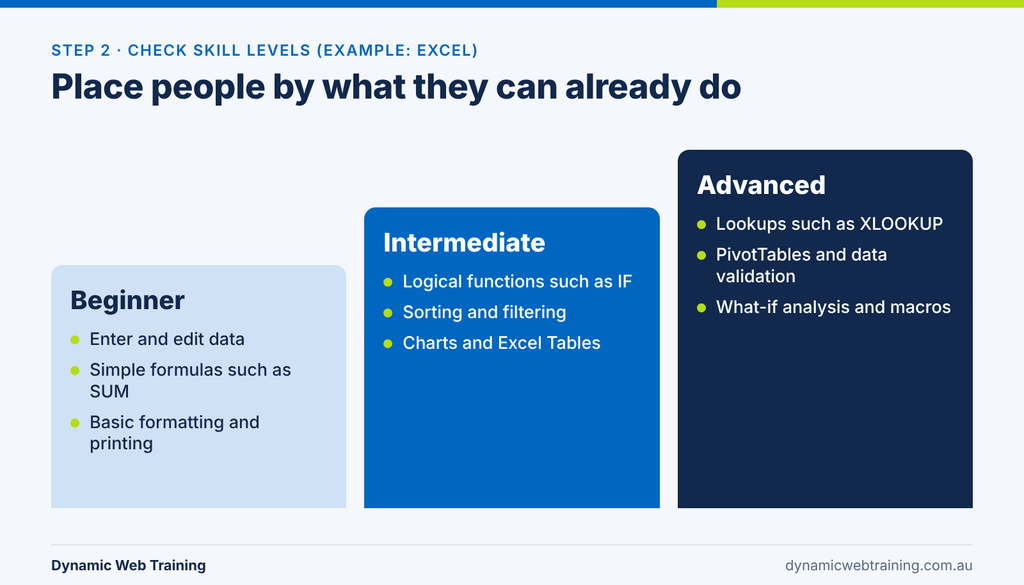
Self-ratings are unreliable, because people often rate themselves as “intermediate” whatever they can do. Ask what they can already do instead. For Excel, for example:
| Level | Can already do |
|---|---|
| Beginner | Enter data, simple formulas such as SUM, basic formatting and printing |
| Intermediate | Logical functions such as IF, sorting and filtering, charts, Excel Tables |
| Advanced | Lookups such as XLOOKUP, PivotTables, data validation, what-if analysis and macros |
Send a short task checklist like this before you book, and ask your training provider to help place anyone who sits between two levels. A good provider will check course outlines and prerequisites with you rather than sell the same course to everyone.
Which Microsoft apps should your team learn first?
Train the apps people use most, in the order that builds skills on top of each other:
- The everyday apps: Outlook, Word and Excel are where most people spend their day, so small improvements add up quickly.
- Collaboration: Teams and SharePoint, so people share files and work together instead of emailing attachments.
- Specialist tools: Power BI, Project or Power Automate for the people who need them.
- Copilot: once people are confident in the apps themselves.
Copilot works best for people who already know the app. Someone who understands Excel can check whether Copilot’s formula is right; someone who does not will accept the answer and move on. Foundations first, then Copilot, gives you better results from both.
Should you choose classroom, Online Live or in-house training?
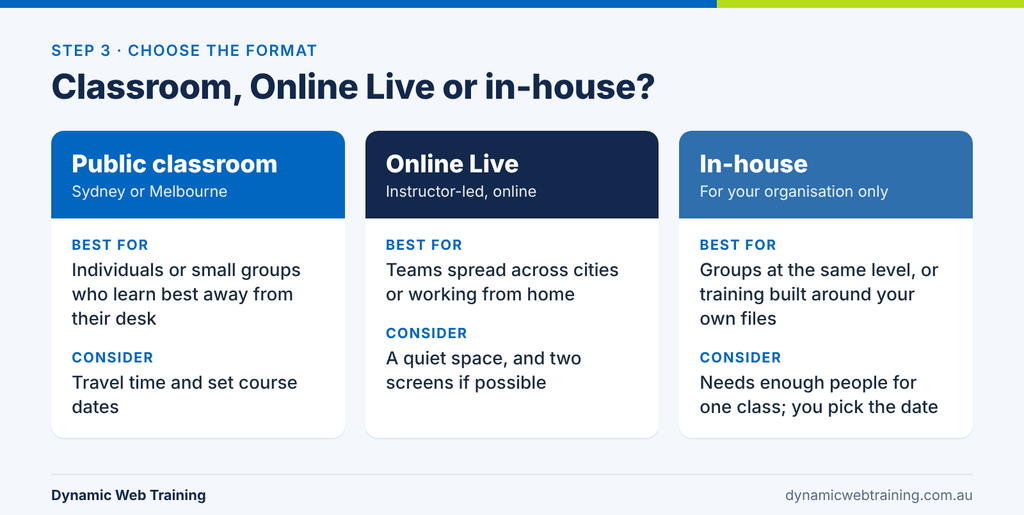
| Format | Best for | Things to consider |
|---|---|---|
| Public classroom course | Individuals or small groups near a training centre who learn best away from their desk | Travel time; set course dates |
| Online Live (instructor-led, online) | Teams spread across cities or working from home | Each person needs a quiet space and two screens if possible |
| In-house training for your organisation | Groups of people at the same level, or training built around your own files and processes | Needs enough people for one class; you choose the date |
Many organisations mix formats: in-house sessions for a large group starting on the same app, and public classroom or Online Live courses for individuals who need a different level.
What should you look for in a Microsoft training provider?
• Live, hands-on teaching: a trainer who can answer questions and work through your problems, rather than videos alone.
• Experienced, certified trainers: ideally Microsoft Certified Trainers with real workplace experience.
• Small classes: fewer people means more individual help.
• Current software: training on Microsoft 365 as your team uses it today.
• Clear levels and outlines: published prerequisites and outcomes for each course.
• Support after the course: email support, course materials and the option to repeat the course if someone needs a refresher.
• Flexibility: classroom, Online Live and in-house options, with regular dates.
• Evidence: reviews from past students and organisations like yours.
At Dynamic Web Training, classes are capped at 10 students (5 on average), every course includes unlimited free repeats for 8 months and 12 months of email support, and we can place each person at the right level if you are not sure where they fit.
Is self-paced video training enough?
Self-paced videos are useful for refreshing a single skill or looking up how to do one task. They are less effective for building new skills from scratch, because no one checks understanding, answers questions or adapts to the learner. Completion rates also tend to drop once training competes with daily work. Many teams use instructor-led training to build the core skills and short videos or how-to guides for reinforcement afterwards.
How do you measure whether the training worked?
Decide what success looks like before training starts, then check four to six weeks afterwards:
• Time saved on the tasks you listed at the start, such as preparing a monthly report
• Fewer errors in reports, spreadsheets or documents
• Fewer “how do I” questions to colleagues or the help desk
• Confidence, measured with a short before and after survey
• Use of new skills, such as more people using PivotTables or templates
Share the results with managers so the next round of training targets whatever still takes too long.
Next steps for your team
- List the tasks that take your team the longest or cause the most errors.
- Send a short skills checklist to see who sits at which level.
- Decide on the apps and order: everyday apps, collaboration, specialist tools, then Copilot.
- Choose the format that suits each group.
- Book, then measure the results after four to six weeks.
For a wider view of the skills Australian employers are looking for, see our guide to the most in-demand digital skills in Australian workplaces.
Browse our Microsoft training courses for Excel, Word, Outlook and more, from Beginner to Advanced, in-class in Sydney and Melbourne or Online Live across Australia. When your team is ready for AI, our Microsoft Copilot training builds on those foundations. Training several people? See our Microsoft training package or ask about in-house training for your organisation.
Frequently asked questions
List the tasks each person needs to do, check their current skill level, and match them to the right app and course level. Then choose a format that suits your team, such as classroom, Online Live or in-house, and a provider that offers live trainers, small classes and support afterwards.
Ask what they can already do rather than how they rate themselves. Staff who can enter data and use simple formulas suit a beginner course; those who use IF, sorting and charts suit intermediate; those who need lookups, PivotTables or macros suit advanced.
For most people, yes. Online Live training is still taught live by a trainer who can answer questions and check your work. It suits teams spread across locations, while classroom training suits people who learn best away from their desk.
Yes. Copilot works best for people who already know the app they are using, because they can check whether Copilot’s output is right and fix it. Train the core skills first, then add Copilot.
Public courses are scheduled classes that anyone can book, which suit individuals and small groups. In-house training is run for your organisation only, on a date you choose, and can use your own files and processes, which suits larger groups at the same level.
Look for live, hands-on teaching by certified trainers, small classes, training on current Microsoft 365 versions, clear course levels, and support after the course such as email help, materials and free repeats.
